How to Set Up Payment Gateways in WooCommerce Properly
Published on
Setting up a payment gateway in WooCommerce is a crucial step to ensure a secure and smooth checkout process. The right payment method doesn’t just simplify transactions; it also influences customer satisfaction.
Customers tend to prefer online stores that provide various payment options. This is why WooCommerce allows store owners to offer multiple payment methods via payment gateways.
In this tutorial, you will learn how to set up payment gateways in WooCommerce. We will explain in detail how to activate default payment methods and add third-party payment gateways. Follow this tutorial to the end.
Table of Contents
Types of Payment Gateways in WooCommerce
Before starting the configuration, you should know that there are three types of payment gateways in WooCommerce. Each type has different settings. Here are the types of payment gateways in WooCommerce:
1. Default Payment Methods
WooCommerce comes with three built-in payment methods:
- Direct Bank Transfer (BACS): Suitable for businesses that handle manual transfers; payment verification is done after the customer checks out.
- Check Payments: Suitable for business-to-business (B2B) transactions.
- Cash on Delivery (COD): A widely used method, especially for local businesses. COD is ideal if your logistics support on-site payment.
2. Third-Party Payment Gateways
Third-party methods usually require additional plugins. Ensure the gateway plugin is compatible with your version of WooCommerce. Examples include Midtrans, Doku, Stripe, and PayPal.
3. Custom Payment Methods
Methods that allow customers to pay through specific channels. These generally require organized SOPs and a custom workflow. To create a custom method, you need to provide clear payment instructions and information flow.
How to Configure WooCommerce Payment Gateways
As explained, WooCommerce provides several methods with different settings. Follow these steps to configure your payment methods:
1. Activating Default WooCommerce Payment Methods
To activate default methods:
- From the WordPress dashboard, go to WooCommerce > Settings > Payments.
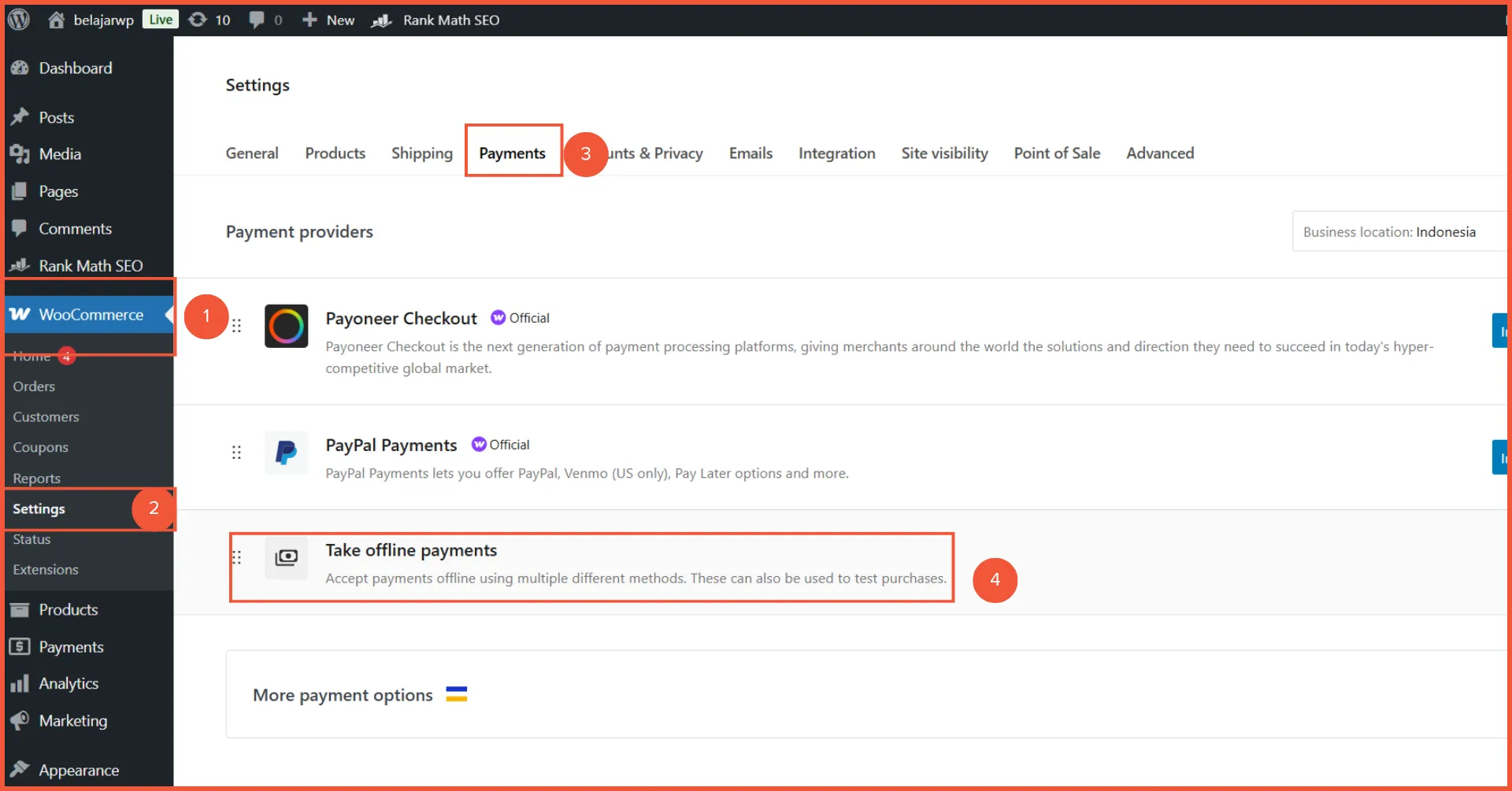
- Click the Enable toggle on the desired method (e.g., Bank Transfer or Cash on Delivery). Once active, click Manage to configure the details:
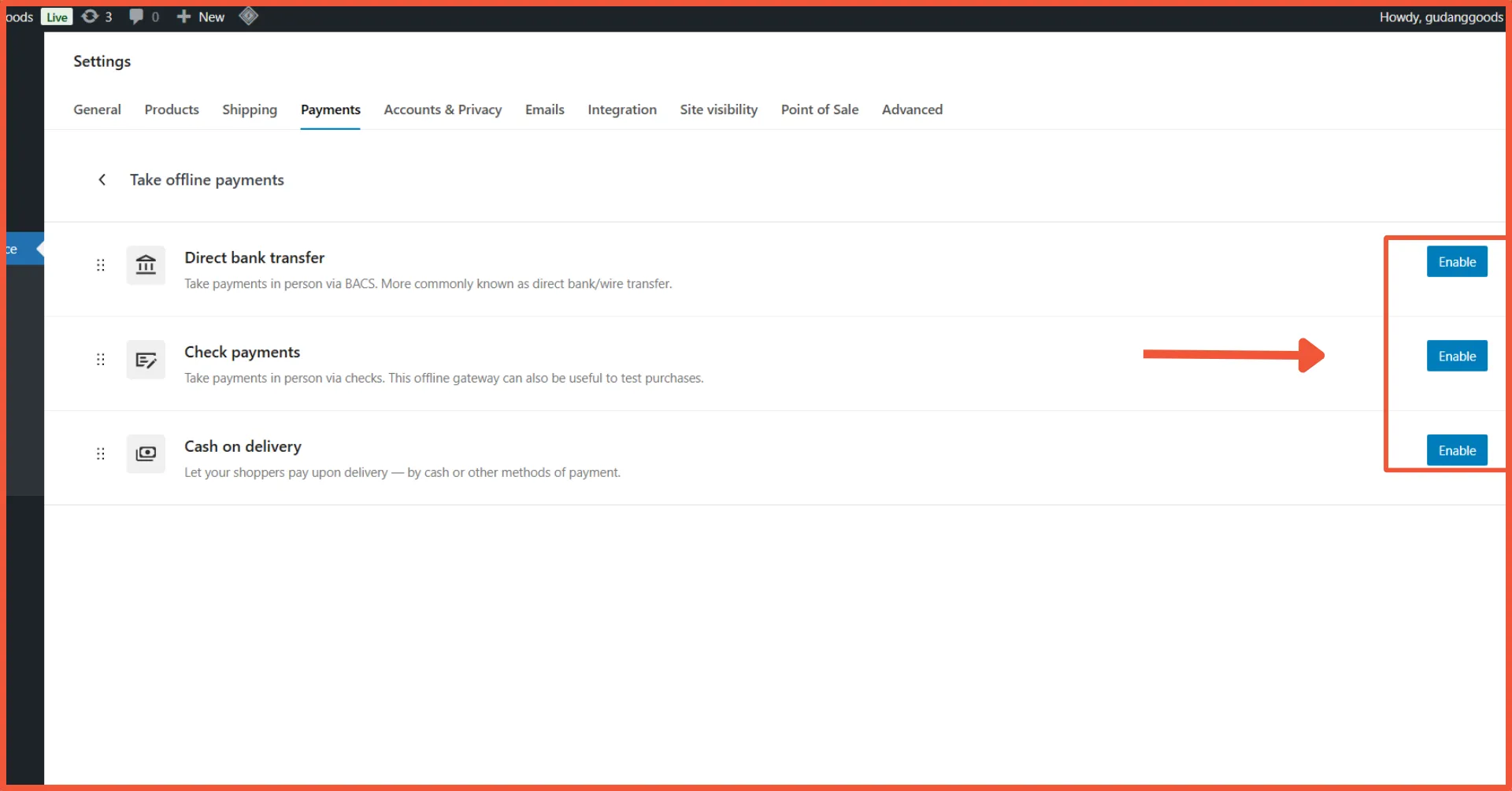

2. Setting Up Direct Bank Transfer
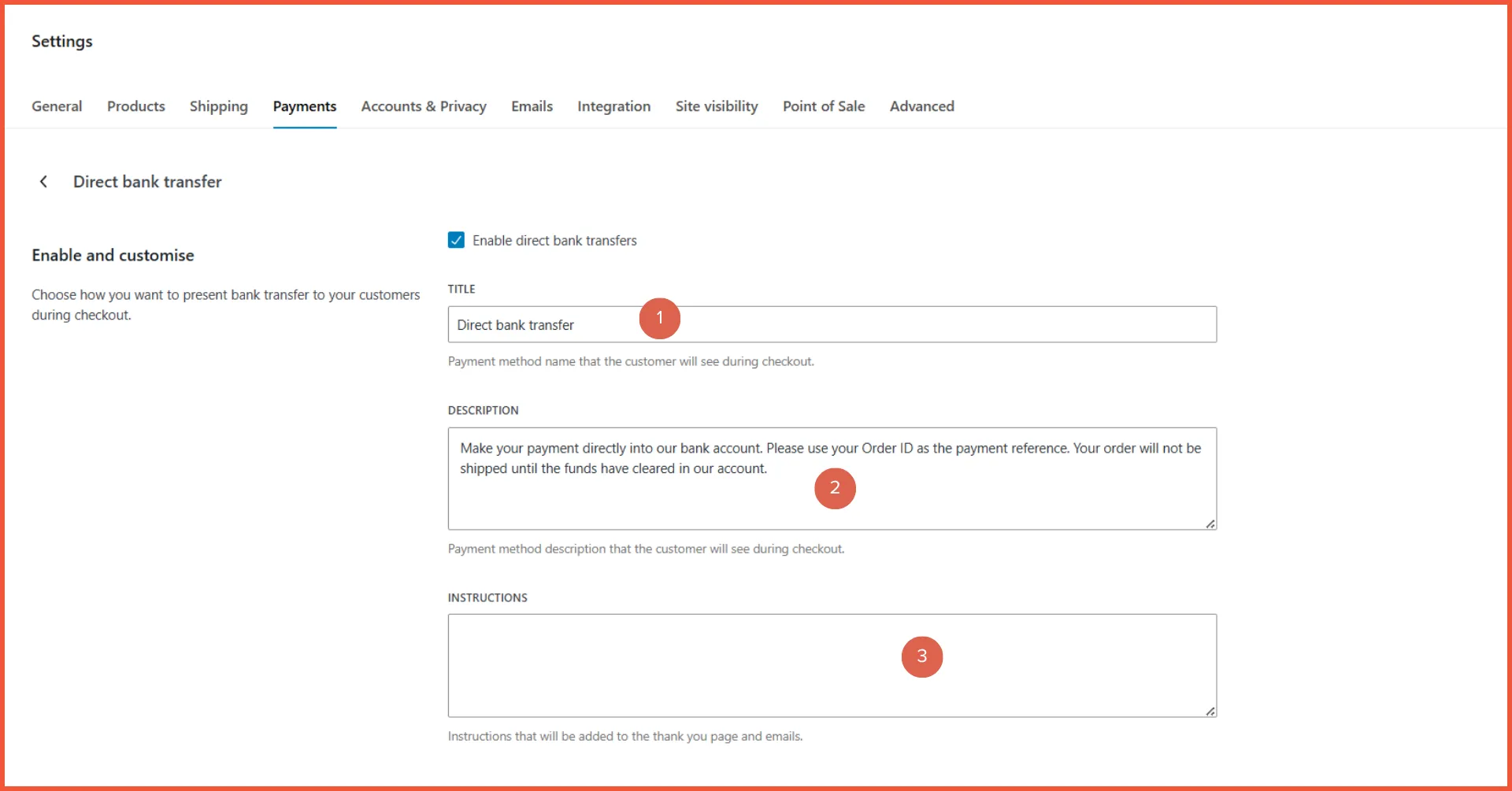
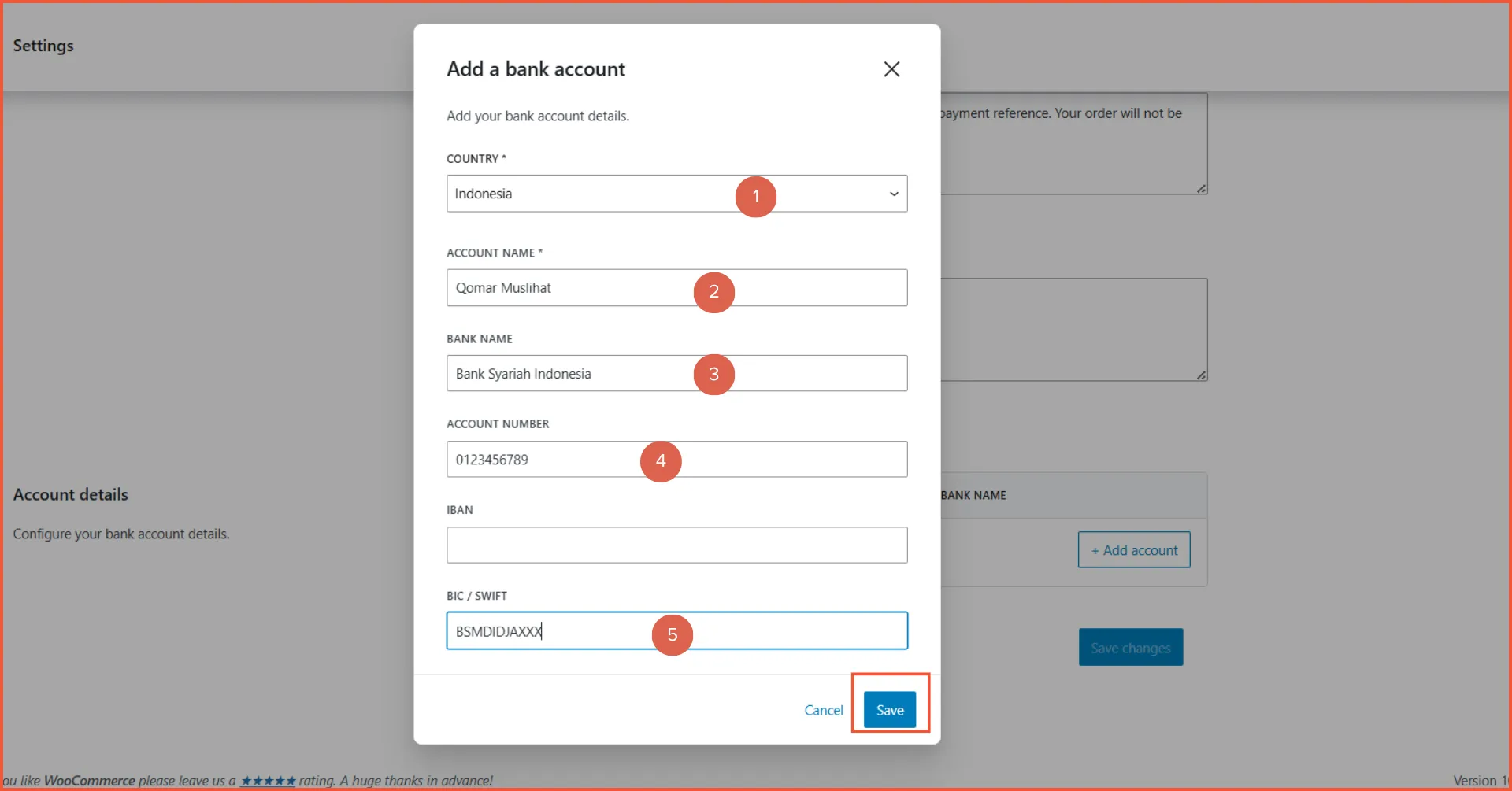
Ensure the status is Enabled and configure the following:
- Title: The name displayed to the customer during checkout.
- Description: Information shown when the customer selects this method.
- Instructions: An explanation of how to make the payment to your bank account.
- Account Details: Enter the Account Name, Account Number, Bank Name, Routing Number, and IBAN/BIC/SWIFT code. These will appear on the order page and in the post-checkout email.
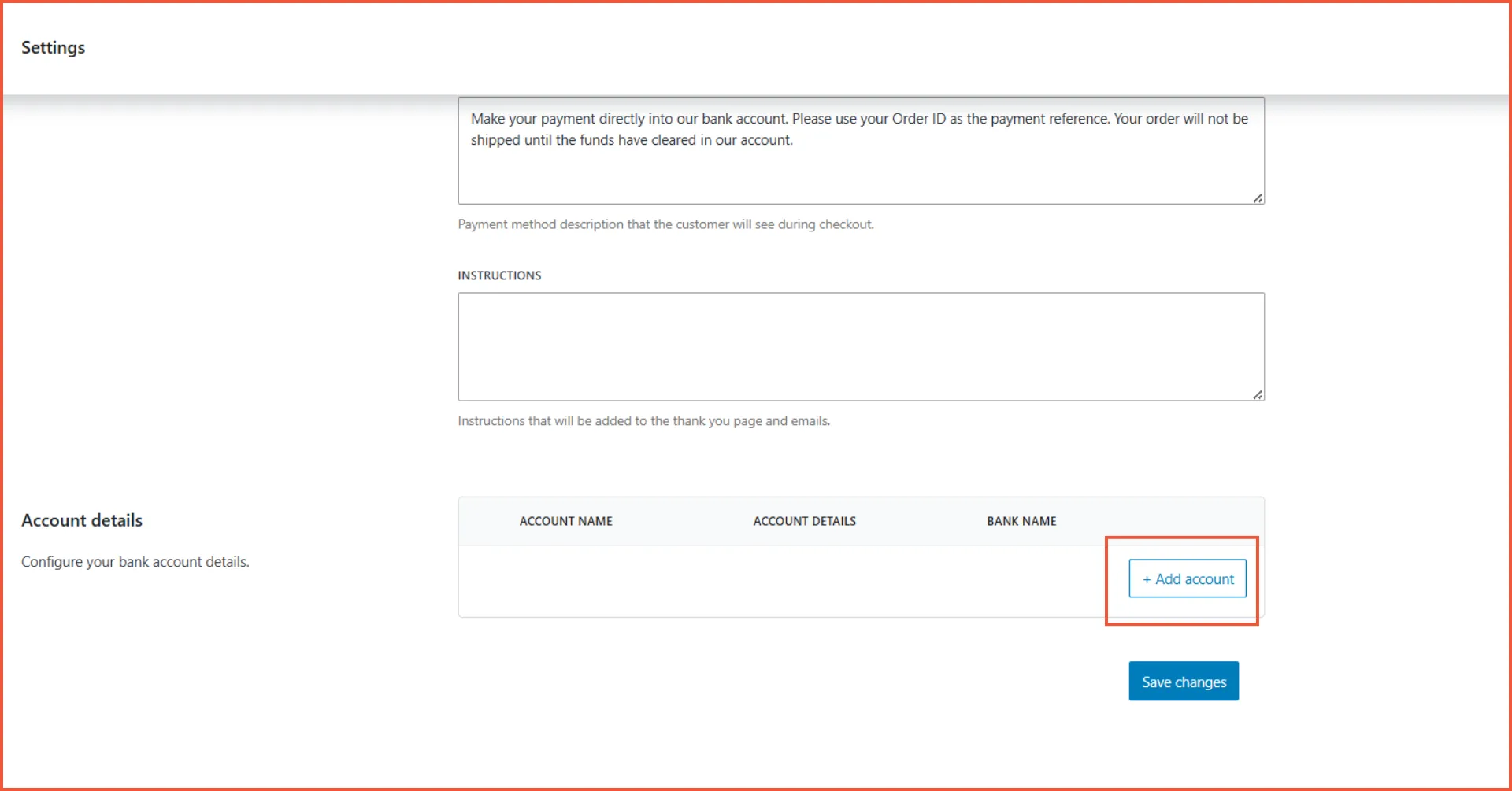
- Click Save.
3. Setting Up Cash on Delivery
Go to the Manage tab and configure:
- Title/Description/Instructions: Similar to the bank transfer setup.
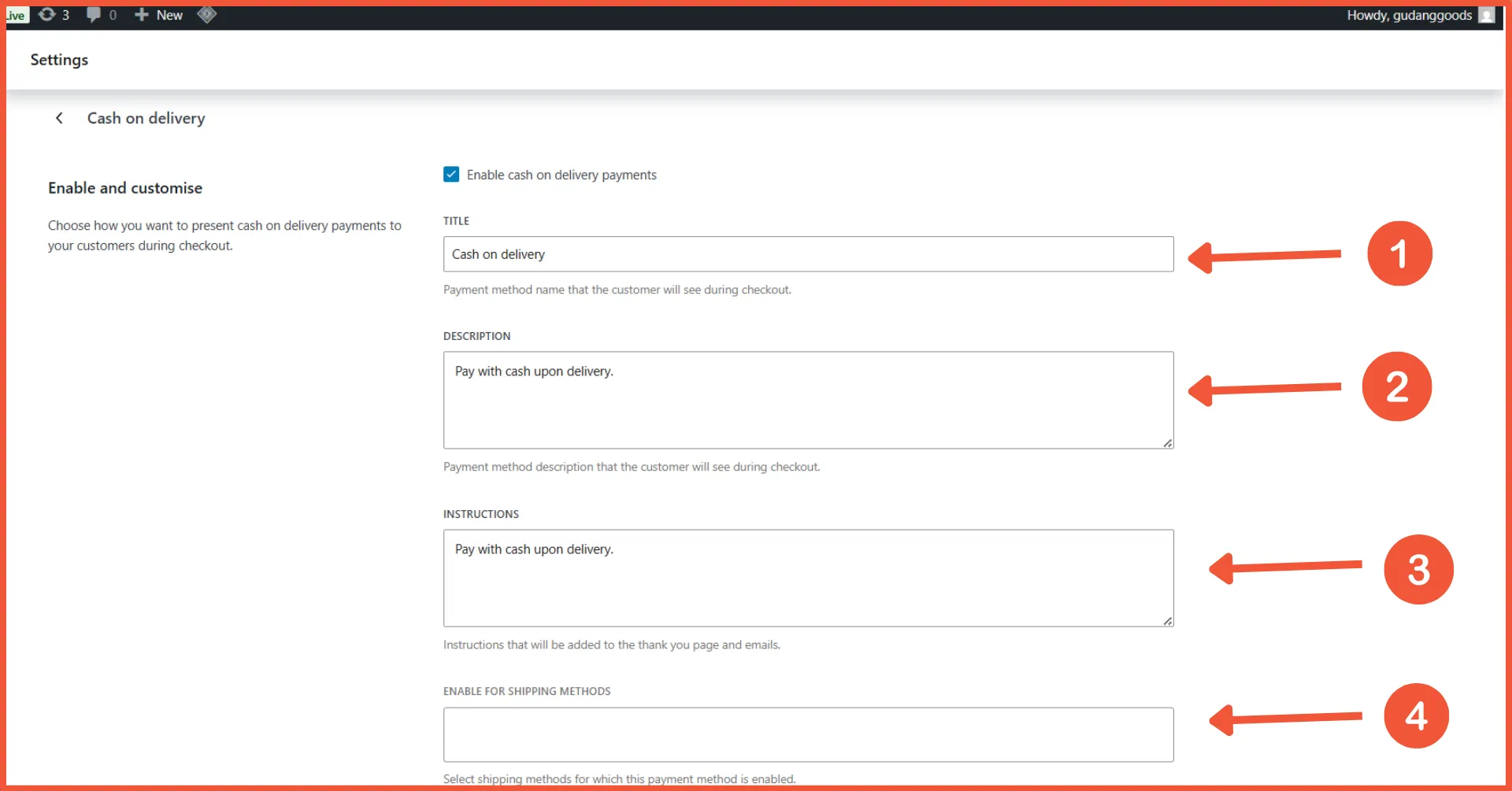
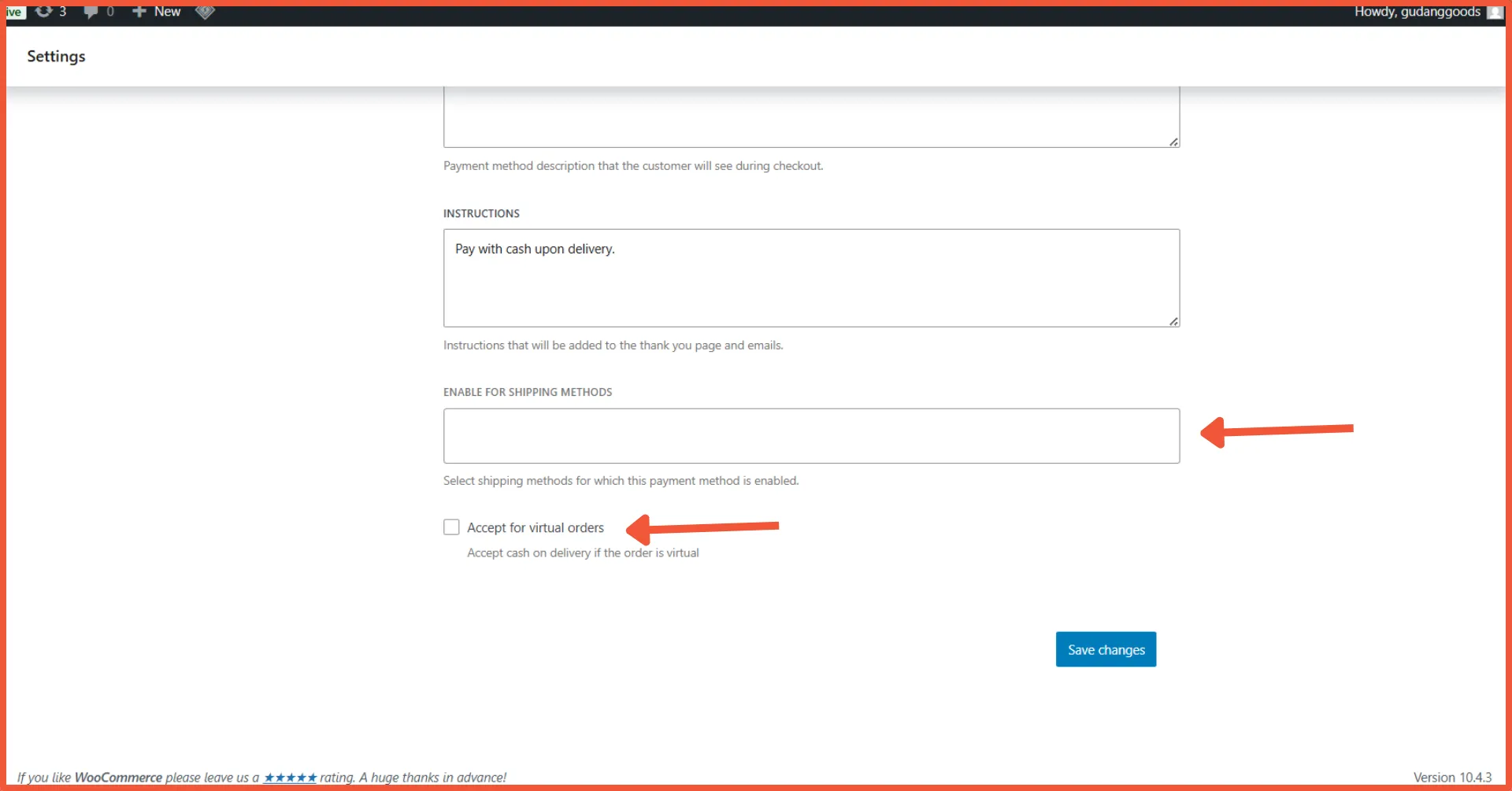
- Enable for shipping methods: Restrict COD to specific shipping carriers only.
- Accept COD for virtual orders: Disable this if you are selling digital products.
Adding Third-Party Payment Gateways
To add a third-party gateway, you must use a plugin. In this tutorial, we use Midtrans.
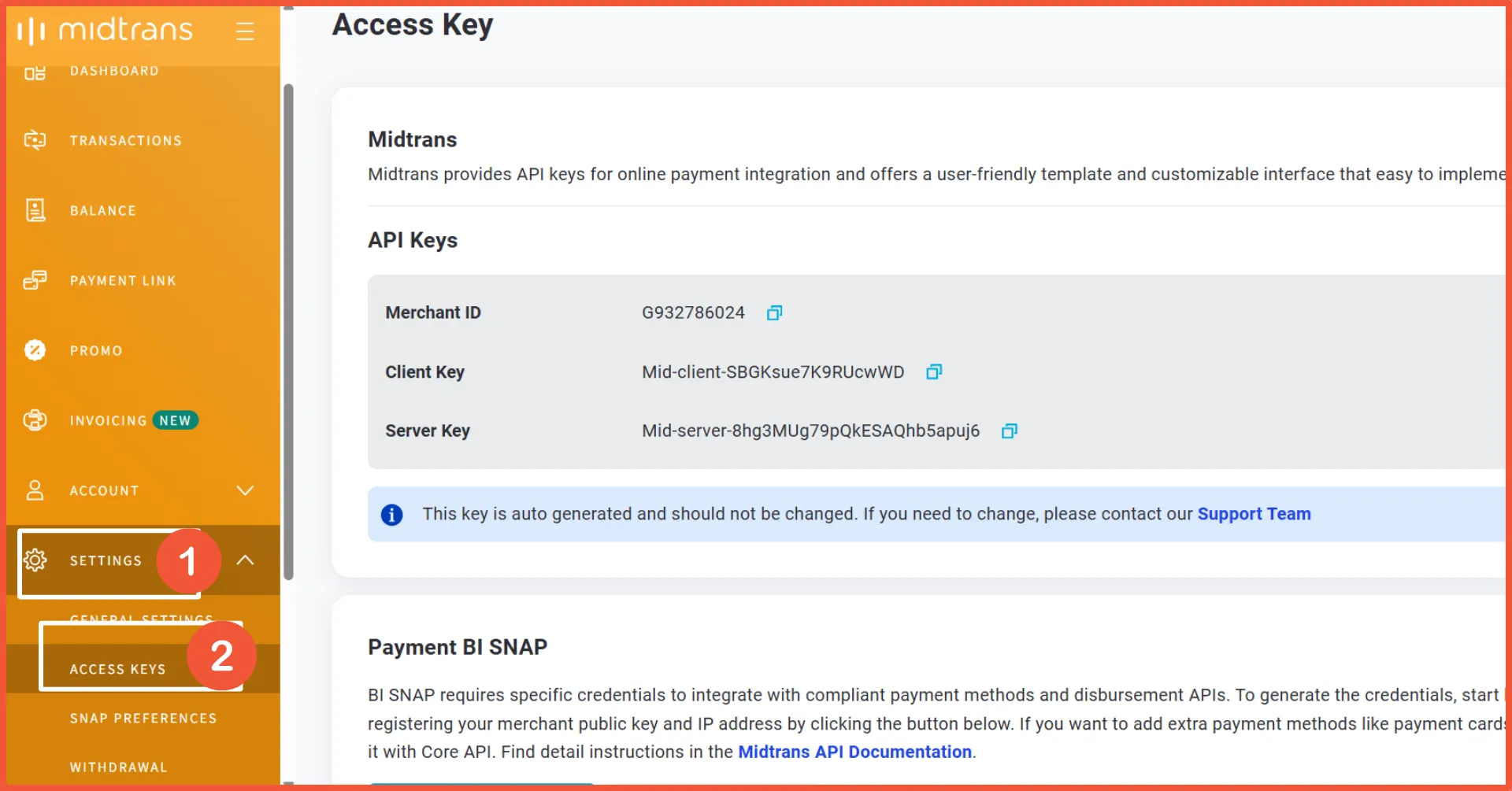
Before starting, ensure you have an active Midtrans account to obtain your API Key, Client Key, and Server Key. You also need to install the Midtrans – WooCommerce plugin via the Plugins menu.
Once you installed the plugin and your account is active:
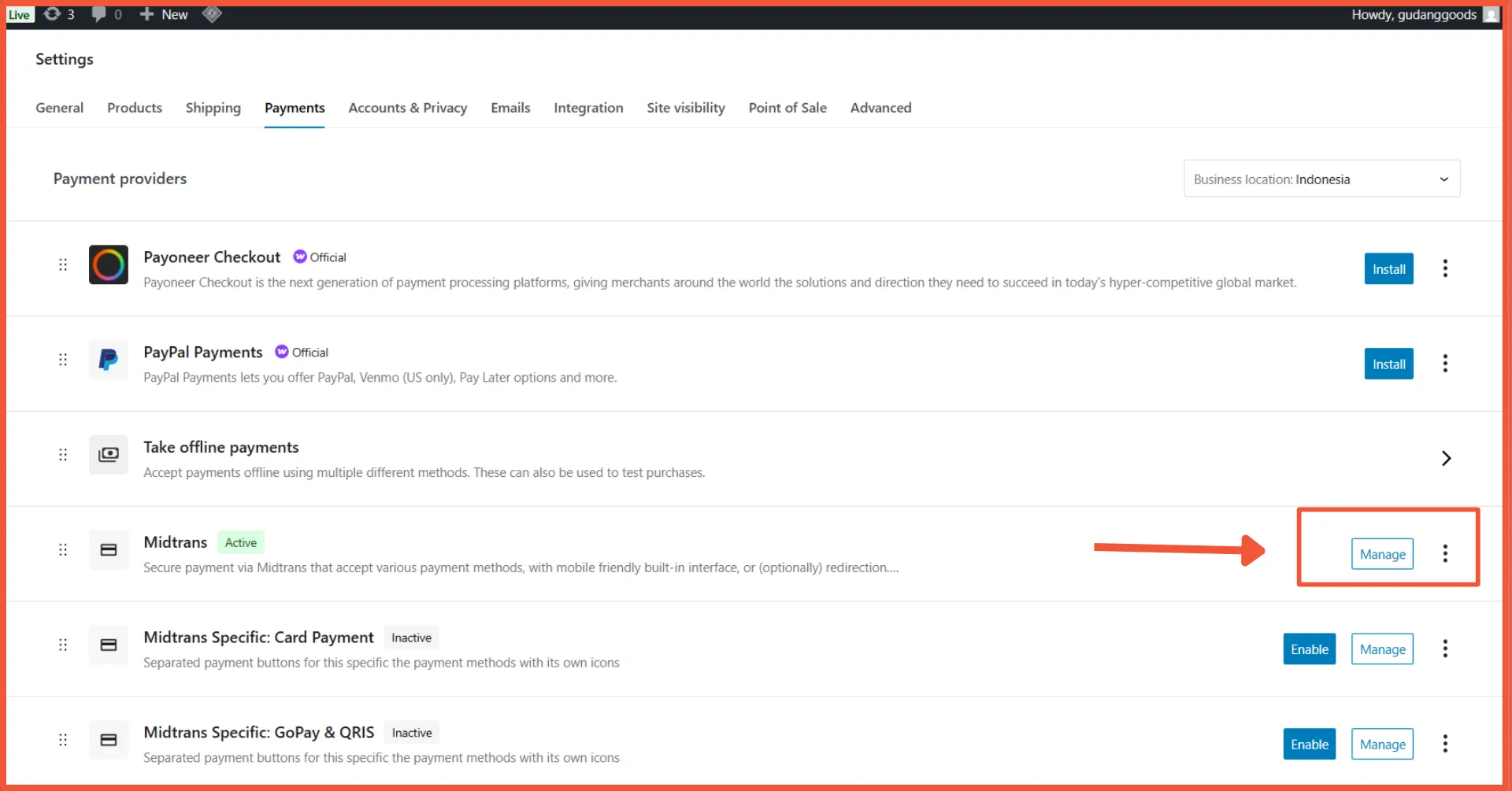
- Go to WooCommerce > Settings > Payments.
- Click Manage on the Midtrans payment provider.
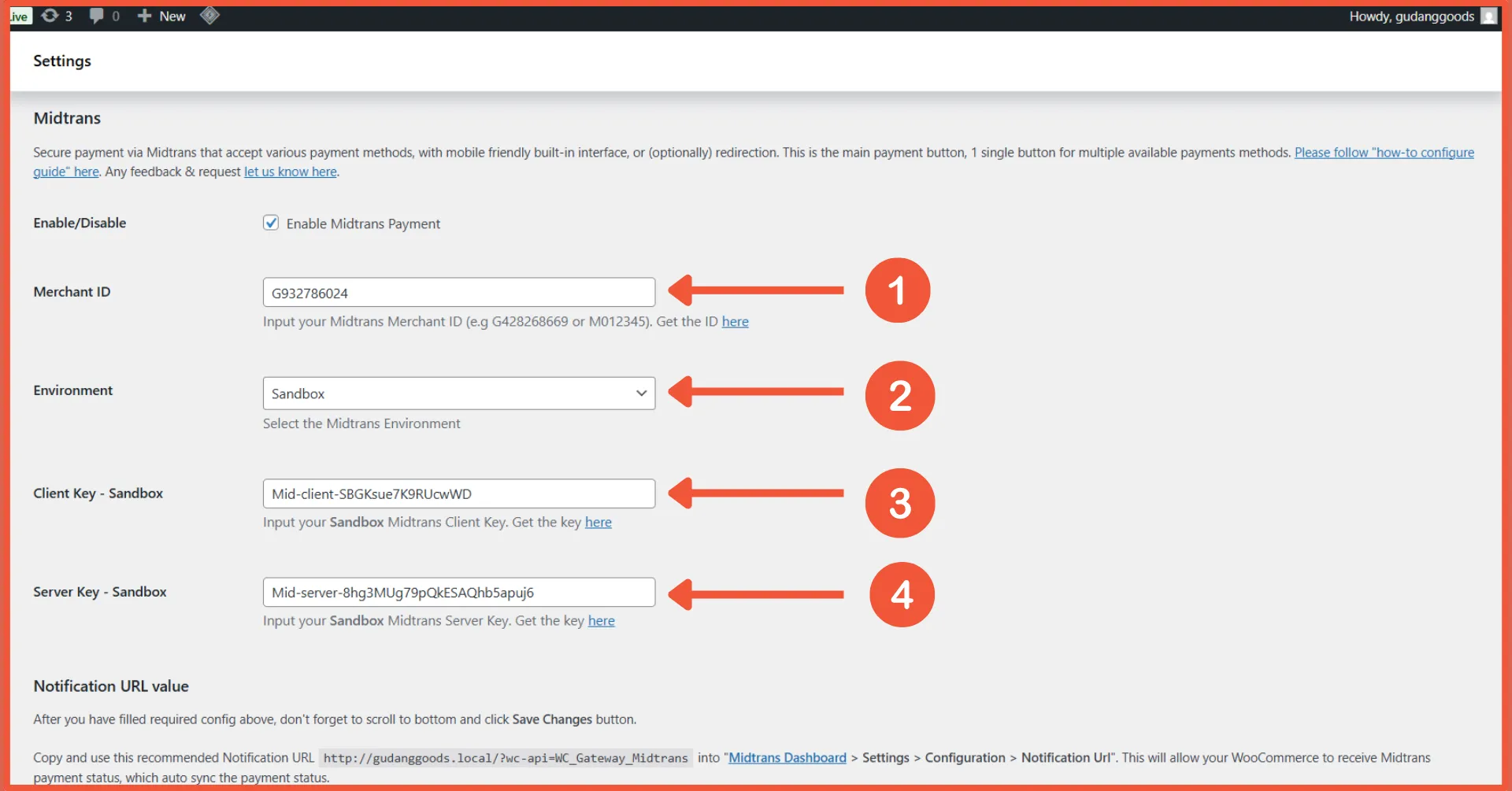
Fill in the configuration form:
- Merchant ID: Your Midtrans Merchant ID.
- Environment: Choose Sandbox for testing or Production for live sales.
- Client Key: Used for the client-side payment flow.
- Server Key: Used to authenticate requests from your server.
- Scroll down and click Save Changes.
Note: Access Keys can be found in the Midtrans Dashboard > Settings > Access Key.
Common Errors When Setting Up Payment Gateways
Errors often occur due to technical misunderstandings or skipped steps:
- Gateway active but not appearing at checkout: Often caused by shipping method restrictions, product types, currency mismatches, or specific plugin settings.
- Swapped API Keys: Forgetting to switch from Sandbox to Production keys or swapping the Client Key with the Server Key.
- Webhook issues: Orders may not update automatically if your site lacks HTTPS, is blocked by a firewall, or if a security plugin is blocking the request.
- SSL/HTTPS not active: Many gateways reject transactions if the website is not secured with an SSL certificate.
- Plugin Conflicts: Conflicts with caching plugins, checkout builders, or multi-currency tools can cause the “Pay” button to fail or methods to disappear.
Successfully Set Up Your Gateway?
Those are the steps to setting up a payment gateway in WooCommerce. Proper configuration ensures smooth transactions and builds customer trust.
If you encounter persistent issues or want a faster, risk-free setup, consider using professional services. Tonjoo offers WooCommerce web development services with years of experience helping hundreds of clients. We provide custom features, gateway configuration, checkout optimization, and system testing.
Contact Tonjoo today to build your professional online store!


Read similar articles by Moch. Nasikhun Amin on the Tonjoo blog about WordPress, WooCommerce, plugins, and other web development topics.
Updated on April 28, 2026 by Moch. Nasikhun Amin