


Migrating a WordPress website to a new domain is a common yet crucial task for website owners. This move is often driven by rebranding efforts, business expansion, or technical reasons like SEO optimization and switching to a better hosting provider. When executed correctly, a migration can enhance your website’s performance, security, and visibility on search engines.
However, if handled carelessly, a migration can lead to serious problems, such as data loss, display errors, and a significant drop in traffic due to broken links or failed redirects.
Therefore, it’s essential to learn the proper way to migrate a WordPress site. This article will guide you through the step-by-step process of moving your WordPress site to a new domain. Be sure to follow along to the end.
Table of Contents
How to Migrate WordPress to a New Domain
Migrating your WordPress site to a new domain involves several key steps and stages. Here’s a complete breakdown of the process:
Step 1: Pre-Migration Preparations
Before you begin the website migration process, a few preparatory steps are mandatory:
1. Perform a Full Website Backup
Backing up your site is the single most important step before any migration. Create a complete backup of your WordPress files (including wp-content, wp-config.php, etc.) and your MySQL database. You can perform a manual backup via cPanel/FTP or use a plugin like UpdraftPlus, Duplicator, or All-in-One WP Migration. For more details, you can read our article on How to Back Up WordPress in cPanel.
2. Purchase a New Domain
You’ll need to buy a new domain name from one of the many registrars available. The new domain should clearly represent your website’s purpose. Remember to choose a domain that is easy to remember.
3. Verify Domain Ownership
After purchasing your new domain, you must verify your ownership. Typically, the domain registrar will send you a verification email; simply follow the instructions provided.
4. Point Your New Domain to Your Website’s Nameservers
Nameservers translate a domain name into an IP address. For example, when a user types www.yourwebsite.com, the nameserver finds your website’s IP address.
Here are the steps to change your nameservers:
- Obtain the new nameservers from your hosting provider.
- They usually follow a format like ns1.website.com and ns2.website.com.
- Log in to your domain registrar account and select your domain.
- Find the DNS or nameserver settings for the domain. Update the default or existing nameservers with the new ones you just obtained.
- Save the changes. DNS propagation can take up to 48 hours to complete worldwide.
Step 2: Change the Website Domain Name
The next step is to update the domain name within your WordPress installation. You have two options for this:
Option 1: Update the URL from the WordPress Settings Menu
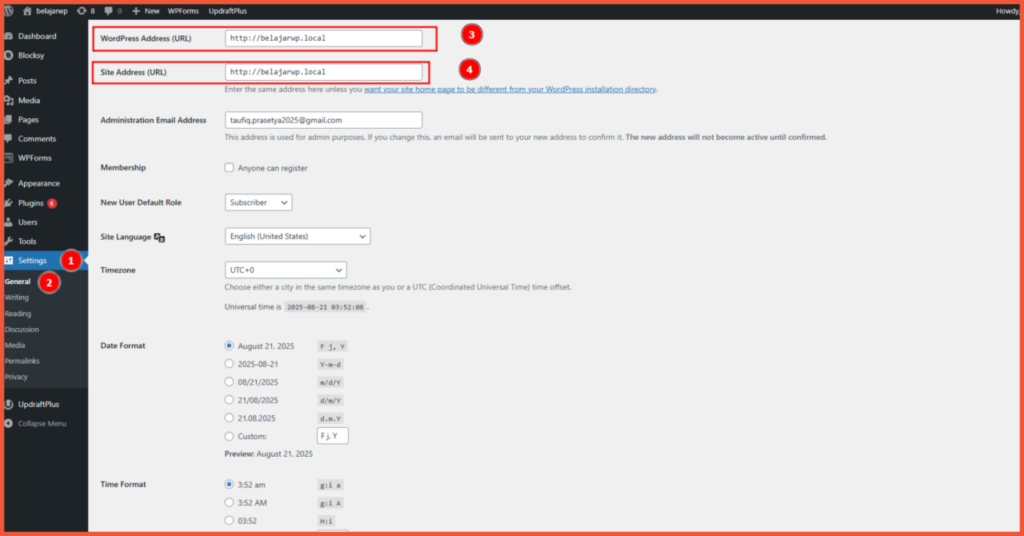
- Log in to your WordPress admin dashboard > Settings > General.
- Enter your new domain in the WordPress Address (URL) and Site Address (URL) fields. Make sure it starts with http:// or https://.
- Scroll down and click Save Changes.
Option 2: Change the Domain via phpMyAdmin
Changing the domain through phpMyAdmin is another reliable option. Here’s how:
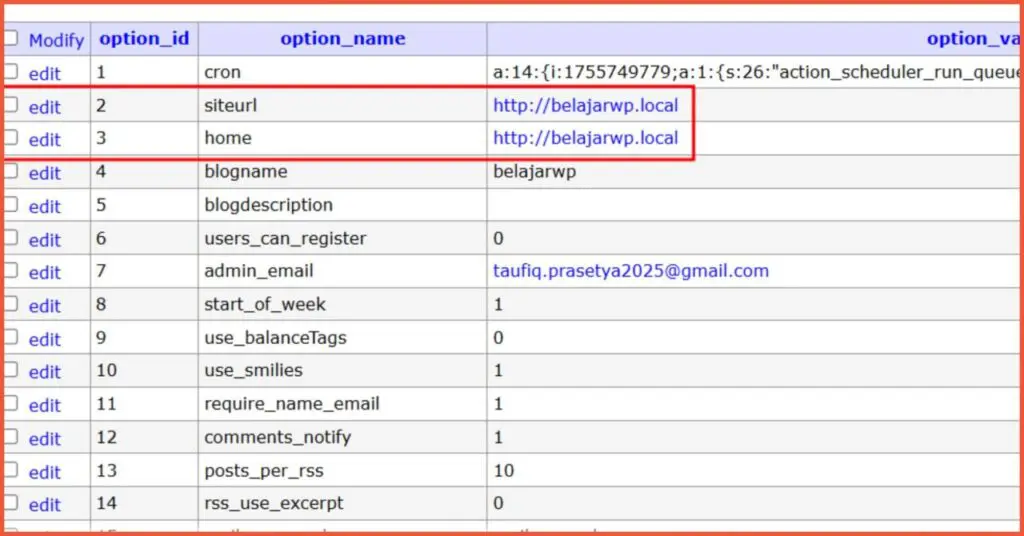
- Log in to phpMyAdmin, which can be accessed through your cPanel or directly via your browser.
- Select your WordPress database > click on the wp_options table.
- Find the rows for siteurl and home. Edit the option_value for each to your new domain. Then click Save the Changes.
Step 3: Update Internal Links
After changing the domain, it’s crucial to update all internal links. You can use a plugin like Better Search Replace to simplify this process.
- Install the plugin: From your WordPress admin dashboard, go to Plugins > Add New. Search for “Better Search Replace,” then install and activate it.
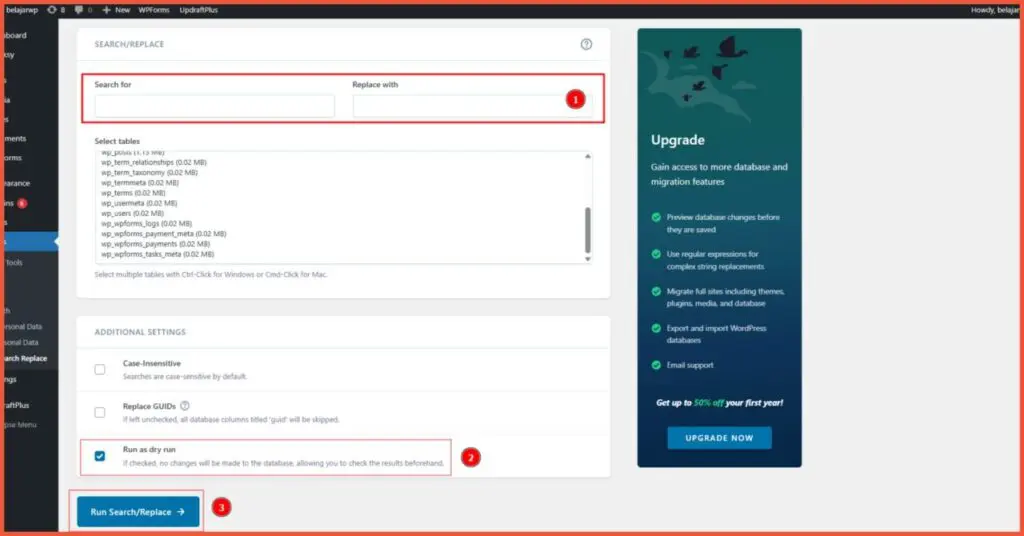
- Configure the plugin: Go to Tools > Better Search Replace. Here, you need to enter your old domain in the “Search for” field and your new domain in the “Replace with” field.
- Do a dry run: Before making permanent changes, perform a “dry run” by checking the “Run as dry run?” option. This allows you to see what will be changed without actually modifying the database, helping you catch any potential issues.
- Update URLs: Once you’re confident, uncheck the dry run option and run the plugin to update all internal links and media URLs.
Step 4: Configure 301 Redirects
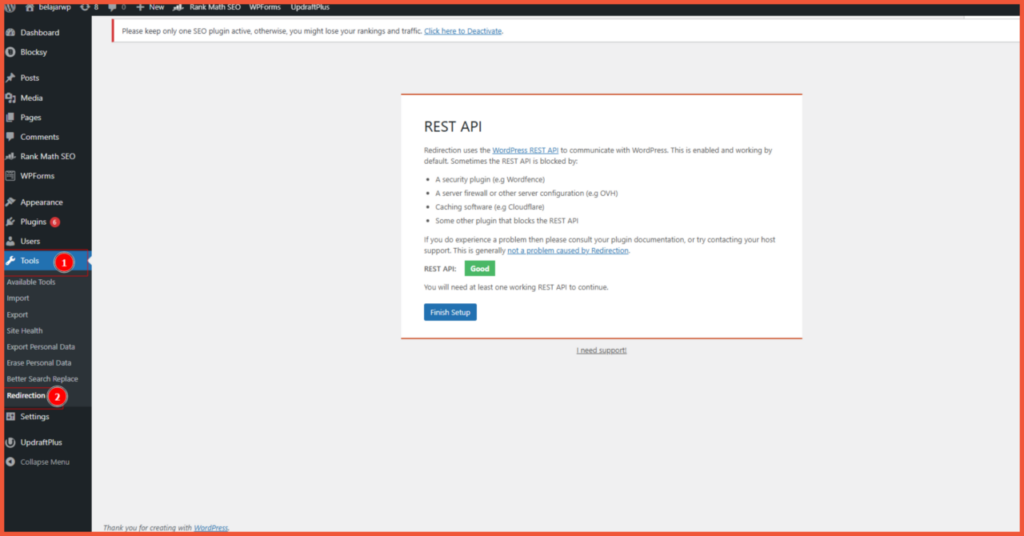
Setting up 301 redirects is critical to ensure that visitors and search engines are automatically sent to your new content. You can achieve this using a dedicated plugin. For this tutorial, we’ll use the Redirection plugin. SEO plugins like Yoast and Rank Math also include redirect features.
- Install the plugin: From your WordPress admin dashboard, go to Plugins > Add New and search for “Redirection.”
- Configure the redirect: Navigate to Tools > Redirection. Follow the setup wizard or add a new redirect manually, pointing URLs from your old domain to your new one.
- Test the redirect: Visit a URL from your old site to ensure it successfully redirects to the new domain.
Step 5: Clean Cache, Check for Broken Links, and Test the New Domain
After successfully migrating your WordPress domain, the next step is to ensure everything is working correctly. You’ll need to:
1. Check for Broken Links
Broken links can frustrate visitors and harm your SEO. Use a plugin like Broken Link Checker to automatically detect and report any dead links on your site.
2. Clear All Caches
After making significant changes to your website, be sure to clear all caches (plugin, server, and browser). Clearing the cache is essential to ensure visitors see the most up-to-date version of your site.
3. Test the New Domain
When you change nameservers, the update is not instantaneous. DNS propagation can take approximately 24 to 48 hours to complete globally.
To check if the propagation is successful, you can use online tools like Whois or whatsmydns.net. These tools allow you to check the status of your DNS settings from various locations around the world.
Step 6: Update Your SEO Settings
Updating your SEO settings after a domain migration is necessary to prevent a significant drop in traffic.
1. Submit the New Domain to Google Search Console
Once your new domain is live, you must add it to Google Search Console. Here are the steps:
- Sign in and add your new domain as a new property.
- Google will ask you to verify ownership. You can do this by adding a TXT record to your DNS settings or by uploading an HTML file to your WordPress website.
2. Update Your Sitemap
Your XML sitemap needs to be updated to contain only the URLs of the new domain. An updated sitemap helps search engines understand the new structure of your website more easily. Please see our article on how to create an XML sitemap in WordPress for detailed steps.
Common Post-Migration Issues and How to Fix Them
Here are some common problems you might encounter after a WordPress migration and their solutions:
1. Permalinks Not Working Correctly
If your permalinks aren’t working, you’ll likely see 404 error messages. To fix this, follow these steps:
- From your WordPress admin dashboard, go to Settings > Permalinks.
- Without changing anything, simply click the Save Changes button. This will flush the rewrite rules and often resolves the issue.
2. Error Establishing a Database Connection
The “Error Establishing a Database Connection” message indicates that your website cannot connect to its database, preventing data from being displayed. This can be caused by a corrupted database or incorrect credentials after an update or migration. To resolve this, you can read our article on how to fix the error establishing a database connection in WordPress.
3. Decreased Performance and Speed
Sometimes, a website experiences a performance drop after migration, such as slow loading times or a lower PageSpeed score. This can be due to differences in server configuration, unoptimized caching, or a CDN that hasn’t been integrated with the new domain.
The first step is to perform a site audit using tools like GTmetrix, Google PageSpeed Insights, or WebPageTest. Then, clear and reconfigure your caching settings using plugins like W3 Total Cache, WP Super Cache, or LiteSpeed Cache.
Was Your WordPress Migration to the New Domain Successful?
That concludes our guide on how to migrate WordPress to a new domain. Besides the manual method described above, you can also use dedicated WordPress migration plugins to move your website. However, the success of any migration heavily depends on thorough preparation, attention to detail, and choosing the right method for your needs and skill level.
Migrating a WordPress site isn’t just about moving files and a database; it’s about ensuring that your traffic, SEO, and user experience remain optimal. If you encounter any challenges during the process, you can partner with the Tonjoo team. With over 10 years of experience in developing WordPress-based websites, we have a proven track record with hundreds of clients, including major names like Polygon Bikes and Universitas Gadjah Mada.

Read similar articles by Moch. Nasikhun Amin on the Tonjoo blog about WordPress, WooCommerce, plugins, and other web development topics.
Updated on December 23, 2025 by Moch. Nasikhun Amin
