


Managing a large number of products in an online store can be challenging without a clear product category structure. In WooCommerce, categories are used to neatly organize products, making it easier for customers to find what they’re looking for.
Beyond improving the shopping experience for potential buyers, product categories also help search engines like Google understand your store’s structure, which can boost your website’s SEO ranking. This tutorial will provide a comprehensive guide on how to create product categories in WooCommerce, from creation to displaying them on your homepage. So, read on to the end.
Table of Contents
Prerequisites for Creating Product Categories in WooCommerce
Before diving into the technical steps, there are a few things you should prepare to ensure the process of creating product categories in WooCommerce goes smoothly.
1. WooCommerce is Installed and Active
First and foremost, you must have WooCommerce installed and activated. If you haven’t installed it yet, please refer to our tutorial on how to install WooCommerce.
2. Existing Products (Optional)
The second thing to prepare is your product list. However, this is optional. This means that even if an online store doesn’t have any products yet, you can still create categories first. We will explain how to add new products to a category later in this article.
How to Create Product Categories in WooCommerce
Once WooCommerce is installed and activated, the next step is to create the product categories. Here are the steps you need to follow.
1. Navigate to the Categories Page
First, go to the Categories menu. From your WordPress dashboard, navigate to Products > Categories. On this page, you will see a form for adding a new product category.

2. Fill in the Category Details
Next, fill in the details for your product category. You can complete the information based on your needs.
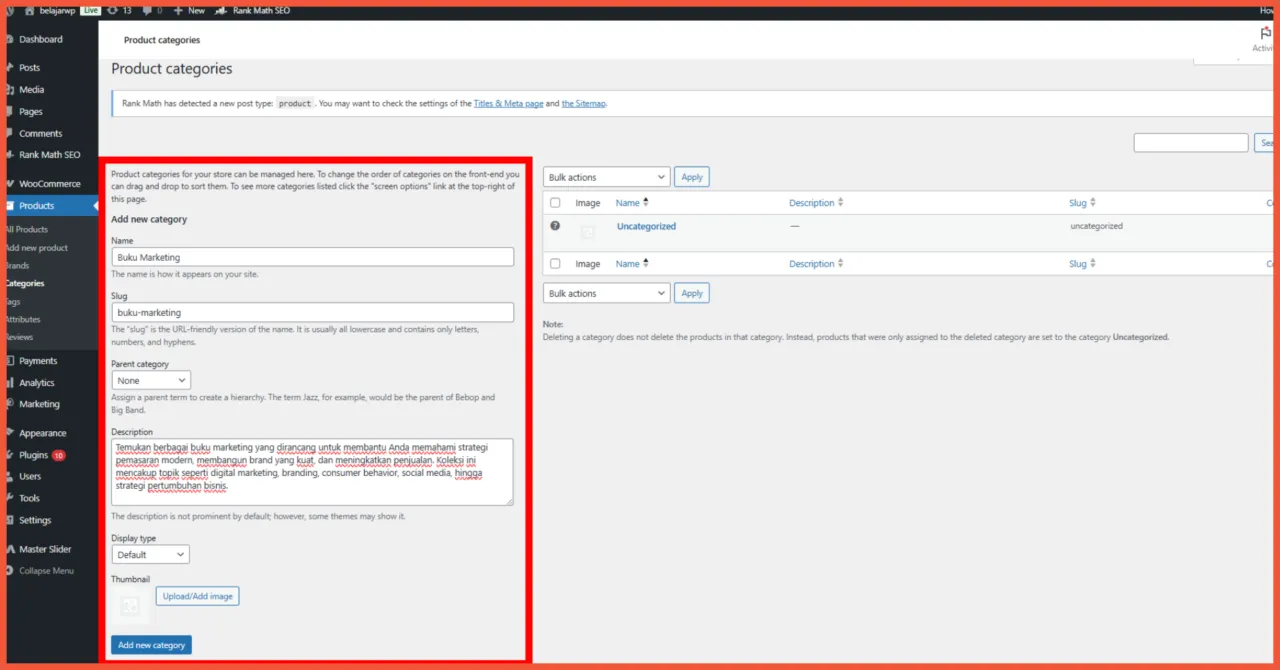
The fields for the product category that need to be filled in. If you are creating a main category, select None in the Parent Category field.
Here is a detailed explanation of the form fields:
- Name: The name of the category that will be displayed in your store.
- Slug: The URL-friendly version of the name. If left blank, WooCommerce will generate it automatically.
- Parent Category: Use this option if you want to create a subcategory. If this is a main category, leave it as None.
- Description: The description is used to help search engines understand the category.
- Display type: Some WooCommerce themes support different display options on category pages:
- Products: Displays only products.
- Subcategories: Displays only subcategories.
- Both: Displays both. If you’re unsure, leave it as the default.
- Thumbnail: A specific image for each category you create. This image will be displayed on the category page or in widgets.
3. Click Add New Category
After filling in all the fields, click Add New Category. Your category is now saved and ready to use.
How to Create Subcategories in WooCommerce
If you want more specific product groupings, you can use subcategories in your online store. Here’s how to create a subcategory in WooCommerce:
- Navigate to the Categories menu.
- Fill in the same fields as you did when creating a main category.
- In the Parent Category field, select the desired parent category. In the example image below, Buku Marketing (Marketing Books) is chosen as the parent category.
- Once all fields are filled, click Add New Category.

How to Add Products to a Category
After creating your categories, the next step is to assign products to them. This typically occurs in two scenarios: when creating a new product or when re-categorizing an existing one.
A. When Creating a New Product
To add a new product to a category, follow these steps:
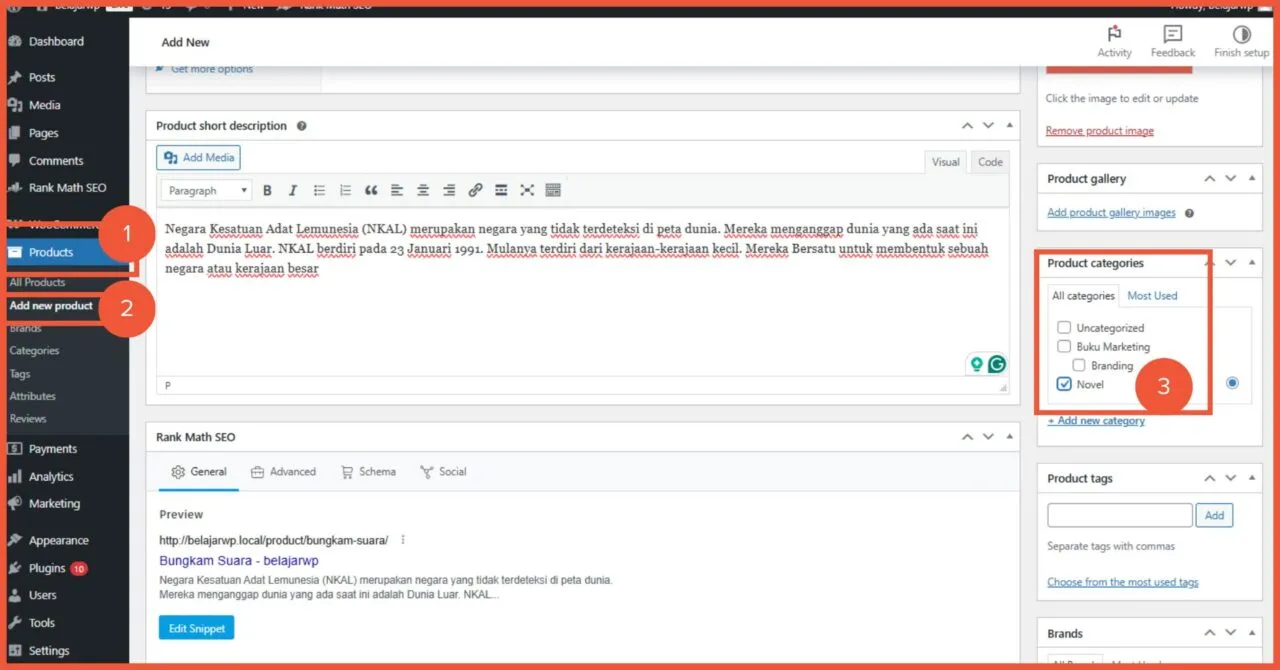
- Go to Products > Add New.
- Find the Product Categories panel on the right side.
- Check the box for the appropriate category or subcategory.
B. Changing the Category of an Existing Product
You can easily add an existing product to a new category. Here are the steps:
- Go to Products > All Products.
- Hover over the product you want to edit and click Quick Edit.

- Check the box for the new category.
- Click Update.

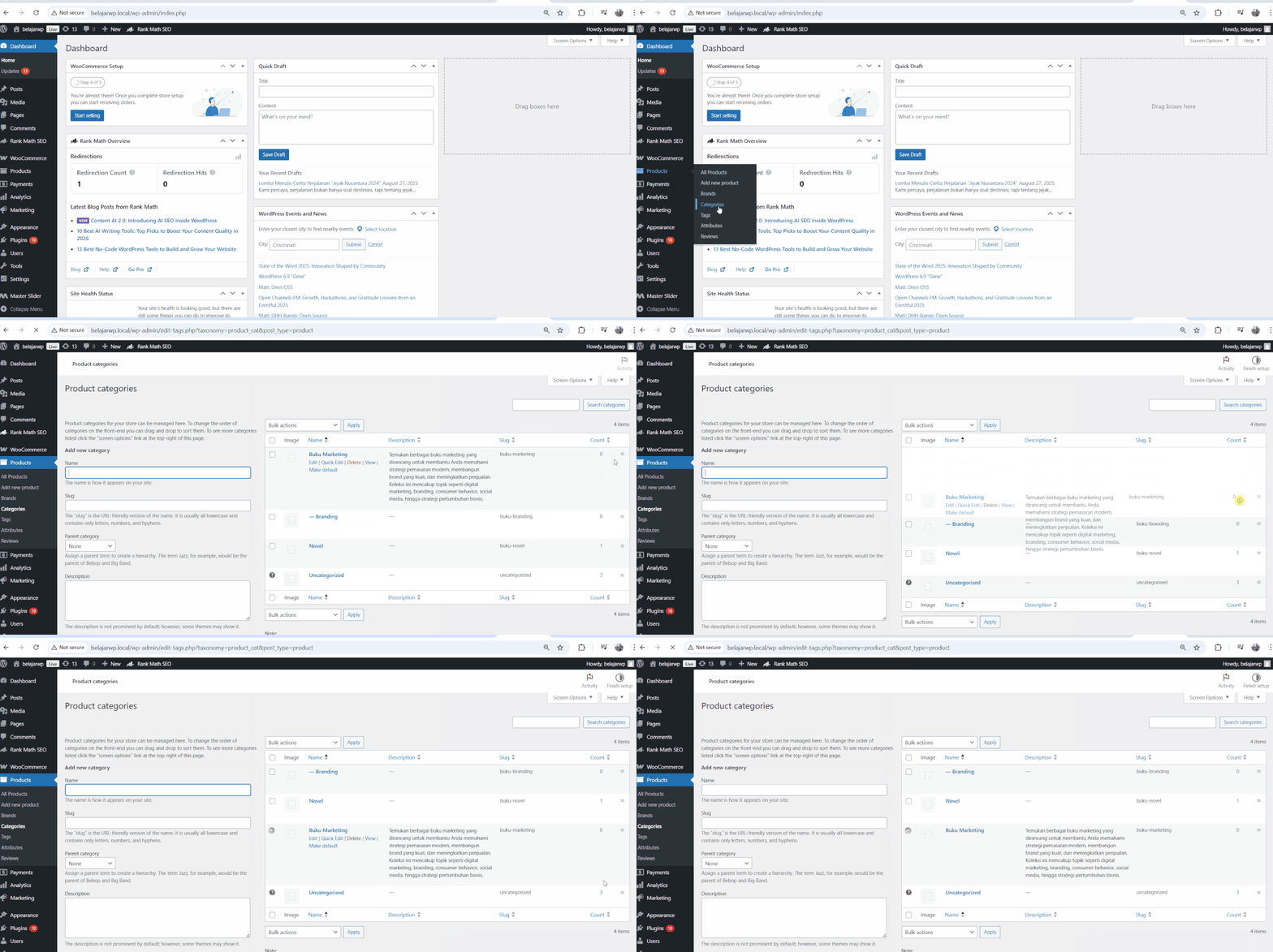
Here is an example of what the created product categories will look like:

Customizing Category Order and Display
In addition to creating categories, WooCommerce also allows store owners to customize the order and display of categories to suit their needs.
A. Arranging Category Order
To set the order of your categories, follow these steps:
- Go to Products > Categories.
- Drag and drop the categories into your desired order.
B. Displaying Categories in Your WooCommerce Store
To improve navigation for potential buyers, you can display product categories in your online store. The process is very simple:
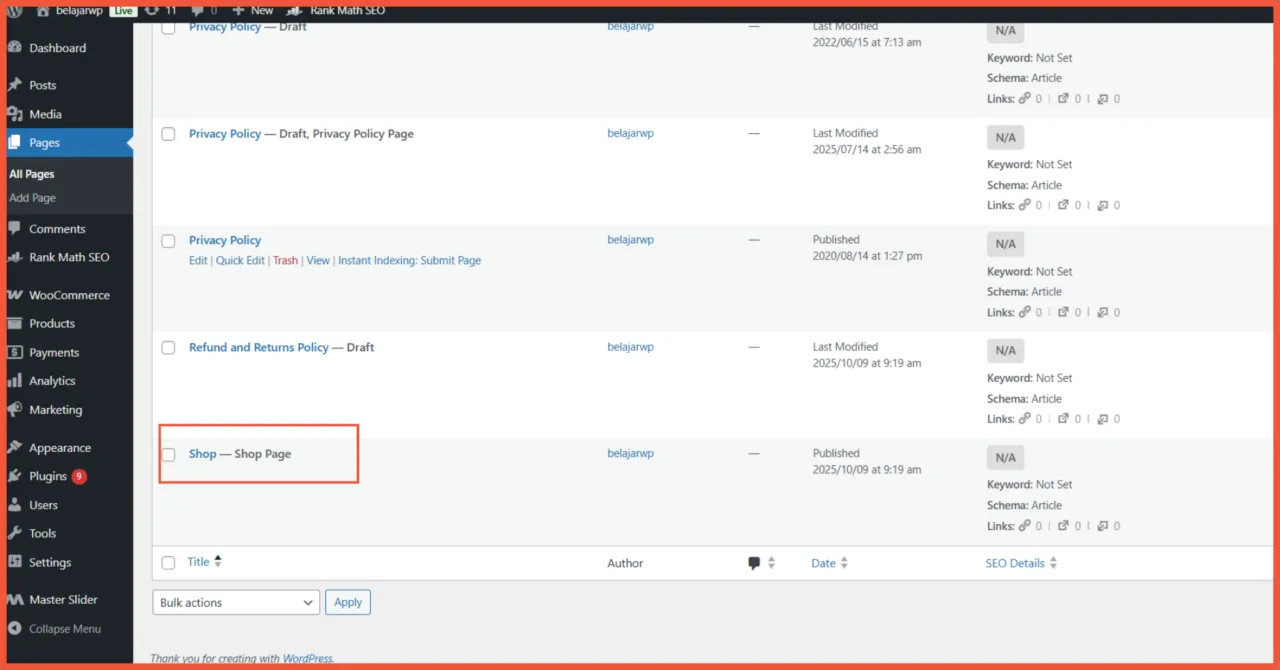
- Navigate to Pages > Shop Pages > Edit.
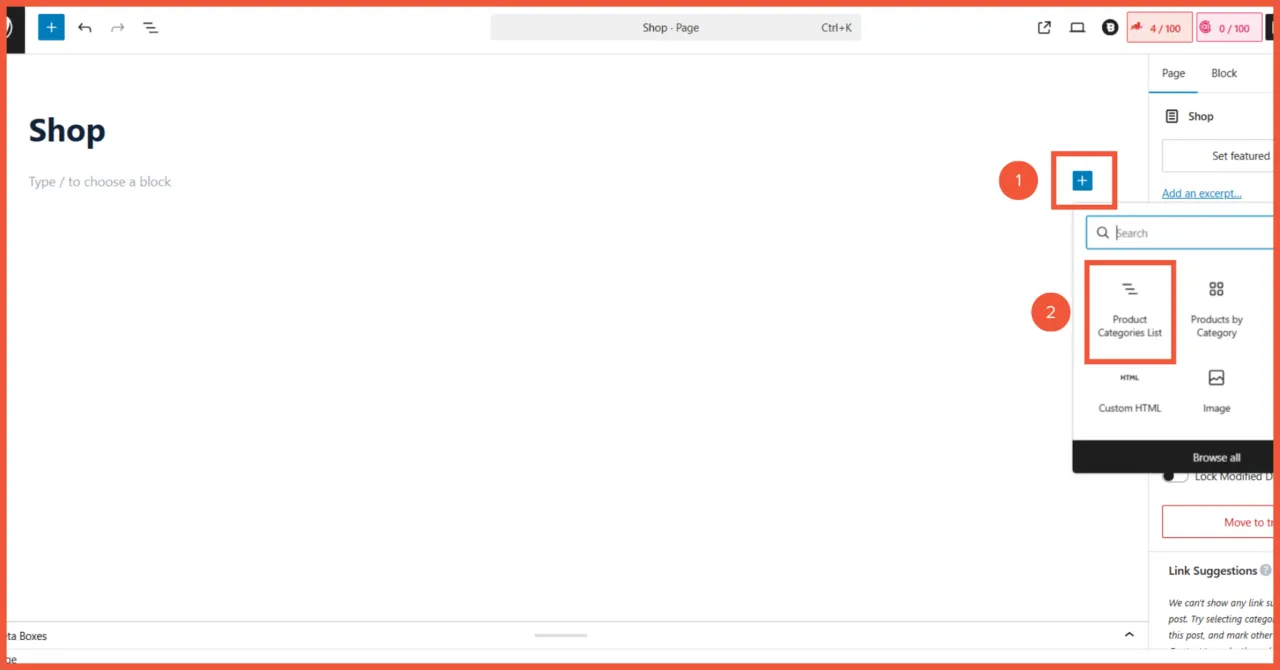
- Click the + icon and search for the Product Categories List block.
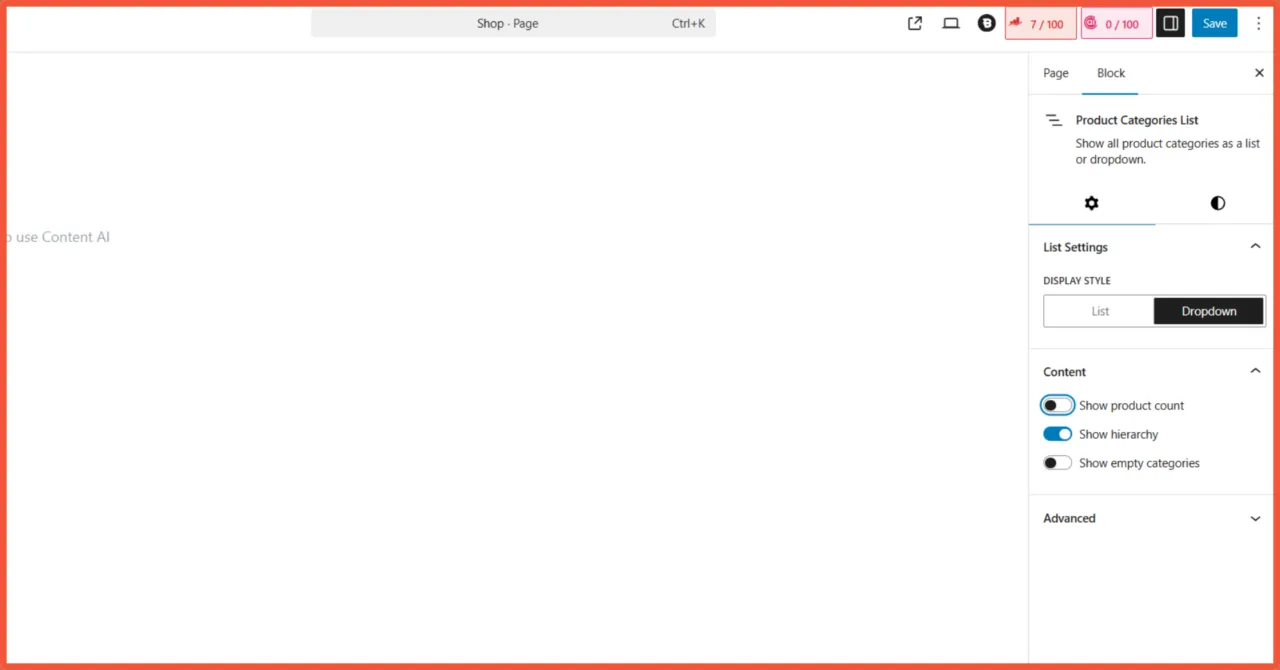
- Adjust the display options as needed. In this example, the settings are: Display as dropdown, Show product count, Show hierarchy, Only show top-level categories.
C. Displaying Categories on the Homepage
WooCommerce allows you to feature product categories directly on your homepage. You can do this using Gutenberg blocks, Elementor, or the default WooCommerce widgets. In this tutorial, we will use the built-in WooCommerce widget, so make sure your WordPress theme supports WooCommerce widgets. Here are the steps:
- Go to Appearance > Widgets.
- Find the widget named Product Categories or WooCommerce Product Categories.

- Drag the widget to your desired area, such as the Homepage, Footer, or Sidebar.

- Once done, click Save.
You’ve Successfully Created Product Categories in WooCommerce!
And that’s how you create product categories in WooCommerce. As a reminder, ensure your WordPress theme is compatible with the latest version of WooCommerce.
This is crucial for being able to display product categories on your homepage. Featuring categories makes it easier for potential customers to find the products they’re looking for. Additionally, product categorization helps search engines recognize your online store’s hierarchy, which positively impacts your SEO ranking.
Beyond category management, many other technical aspects need attention for an online store to run optimally. To let you focus more on your business, entrust your website’s development and optimization to Tonjoo’s online store creation services. We have experience developing hundreds of e-commerce websites like Amily Hijab, Erge Store, Polygon Bikes, and many more. Tonjoo is ready to deliver a website that is functional, secure, and tailored to your business needs.

Read similar articles by Moch. Nasikhun Amin on the Tonjoo blog about WordPress, WooCommerce, plugins, and other web development topics.
Updated on February 19, 2026 by Moch. Nasikhun Amin