


How to check WooCommerce version? Many owners of WooCommerce-based online stores find themselves stuck when asked for their current WooCommerce version. This situation often arises when an error occurs after an update or during a consultation with a developer. Not knowing this basic information can often prolong and complicate the analysis and troubleshooting process.
The problem is, technical details like the WooCommerce version are often overlooked, as store owners are primarily focused on appearance, content, and sales. However, knowing your WooCommerce version is crucial for maintaining theme and WooCommerce plugin compatibility, ensuring website security, and preserving your online store’s performance.
The good news is that checking your WooCommerce version is easy and doesn’t always require professional technical skills. This tutorial will explain several practical ways to find out your WooCommerce version, from using the WordPress dashboard to checking the website files directly. So, let’s dive into the tutorial.
Table of Contents
How to Check Your WooCommerce Version
To ensure your online store runs optimally, knowing your current WooCommerce version is a fundamental and important step. There are several ways to check it, ranging from the easiest method via the WordPress dashboard to more technical approaches involving website files.
Here are a few ways to check your WooCommerce version:
How to Check WooCommerce Version from the WordPress Dashboard
The easiest way to check your WooCommerce version is through the WordPress dashboard. You can find this information in three different locations:
A. Via the Plugins Menu
- From your WordPress dashboard, navigate to Plugins > Installed Plugins.
- Find the WooCommerce plugin and look for the version number listed right below the plugin’s name, as shown in the image below.
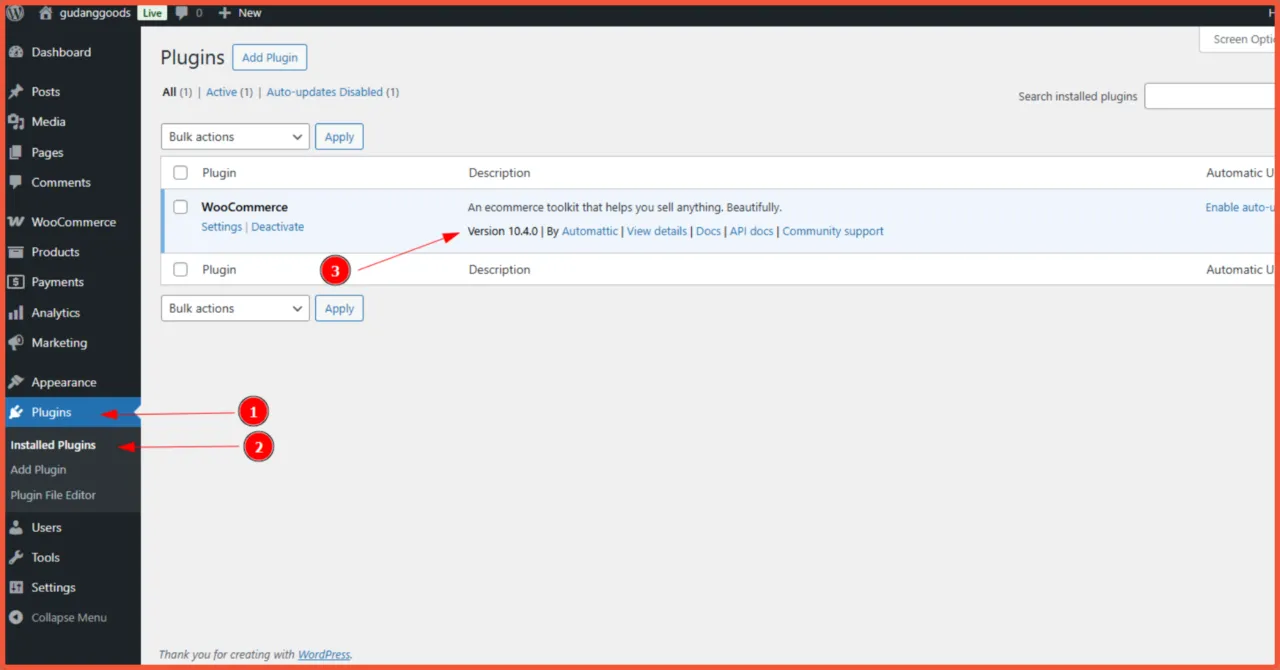
Check WooCommerce version from the Plugins menu in the WordPress dashboard.
B. Via the WooCommerce Menu
- From your WordPress dashboard, navigate to WooCommerce > Status.
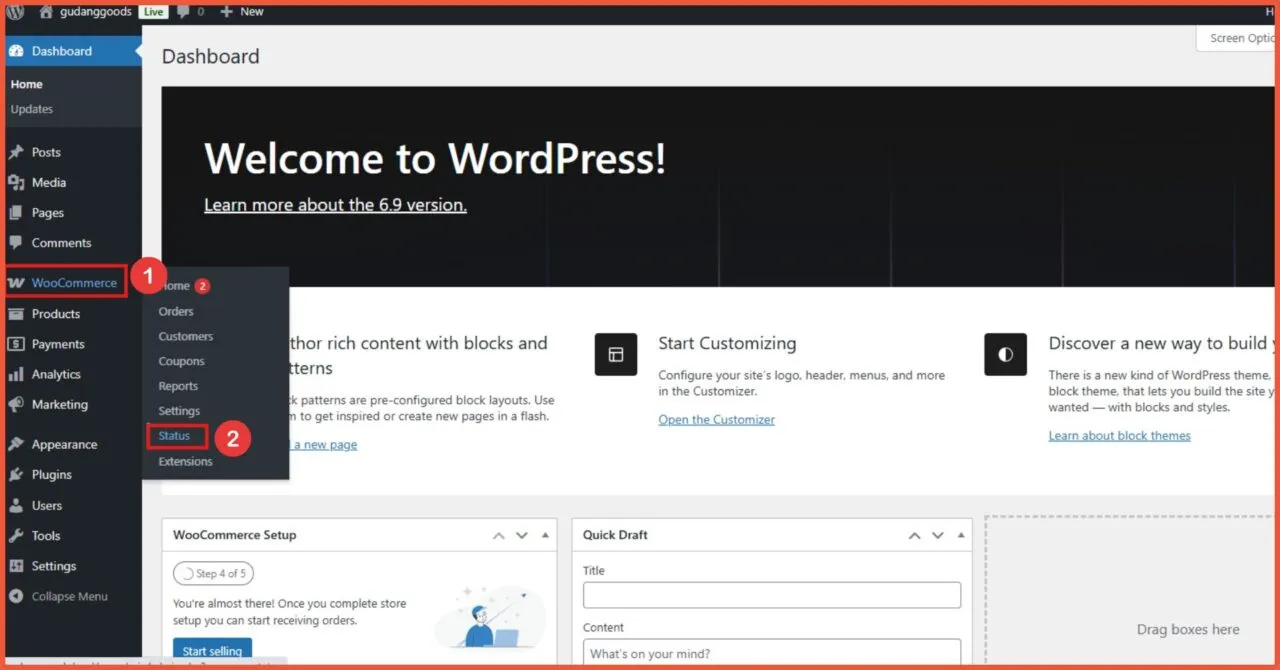
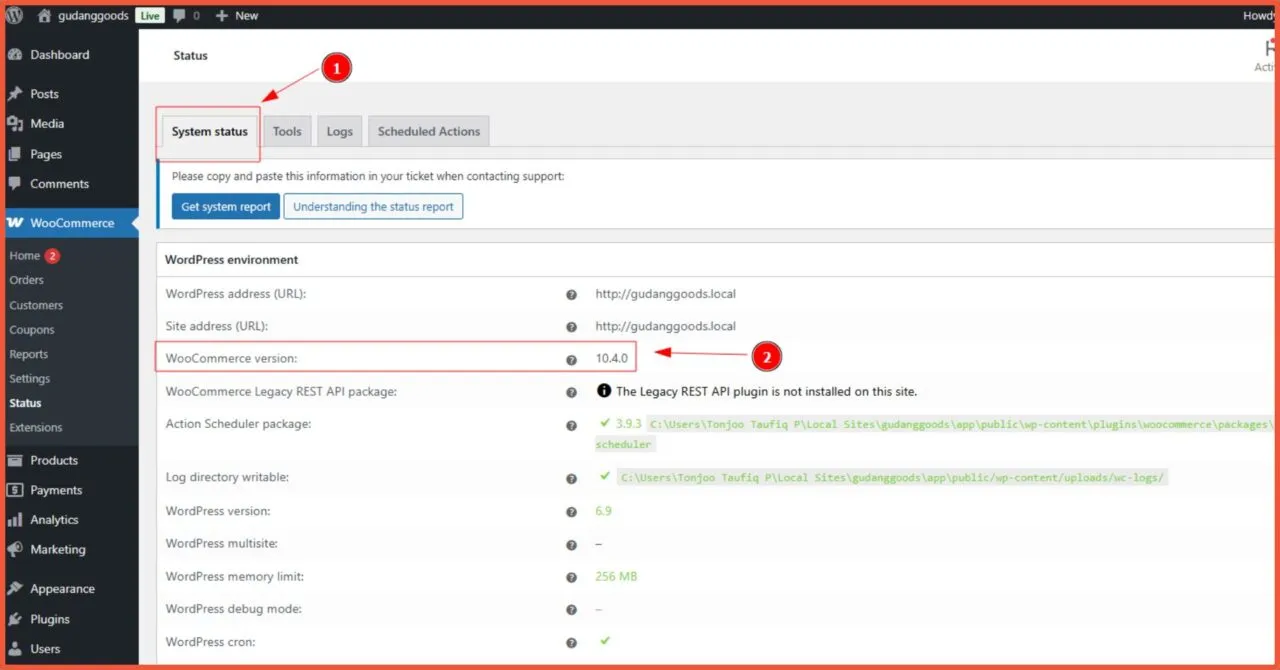
- Go to the System Status tab and look for the WooCommerce version field. You’ll see the currently used version there.
C. Via the Site Health Menu
Site Health is a page in the WordPress backend that contains information about all the configurations on your website. Here’s how to check your WooCommerce version via Site Health:
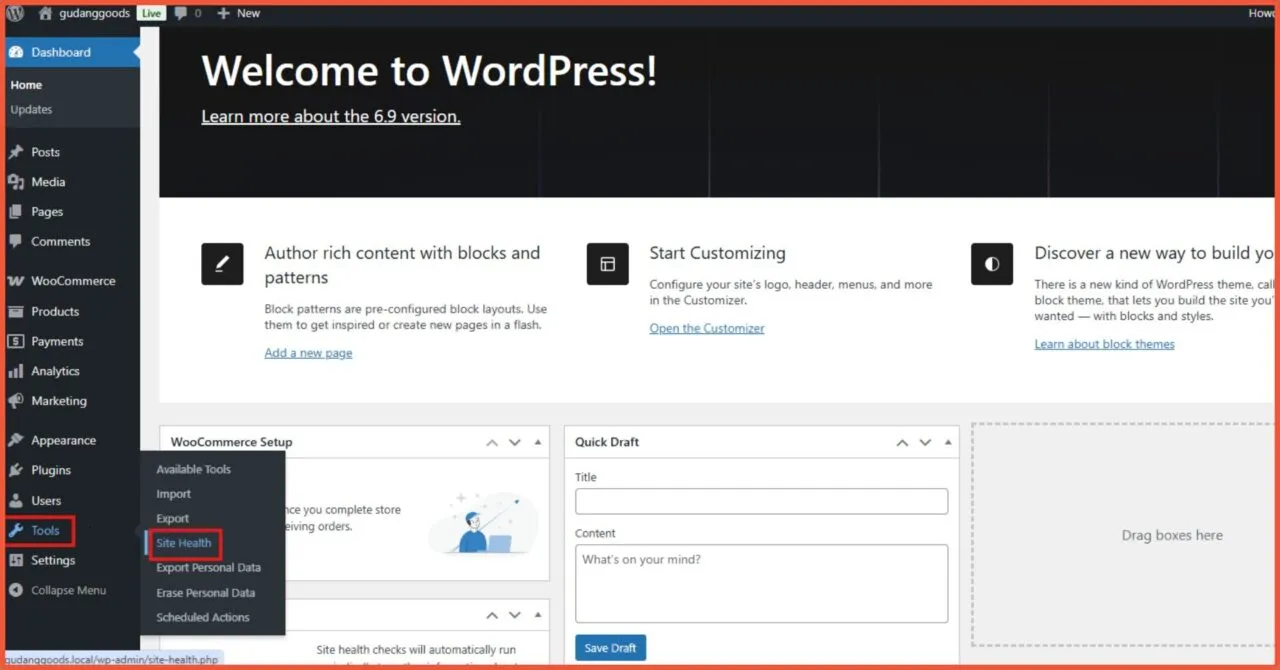
- From your WordPress dashboard, navigate to Tools > Site Health.
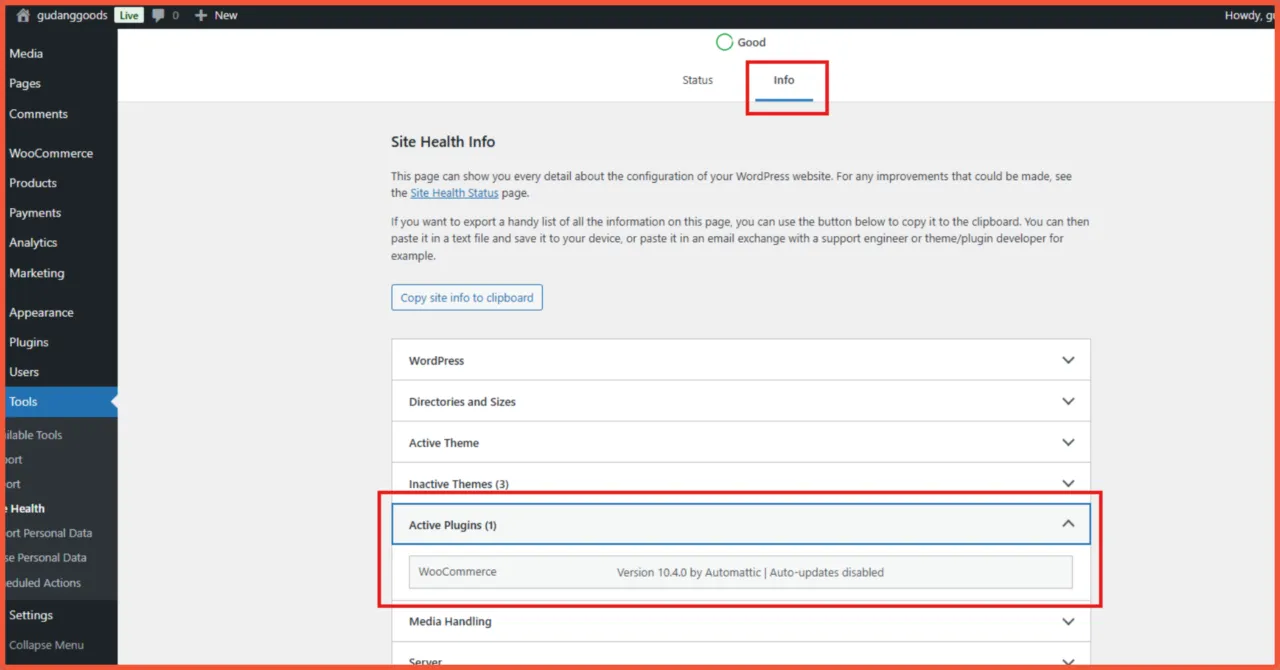
- After that, go to the Info tab and find the Active Plugins section.
- In that section, you can see the currently used WooCommerce version.
How to Check the WooCommerce Version Through Website Files
Besides the WordPress dashboard, you can also see the WooCommerce version through your website’s files. Checking the version through website files is generally needed in urgent technical situations, such as being unable to access the dashboard or after performing a backup and restore.
Here are the steps to check the WooCommerce version through the File Manager:
- Open your File Manager.
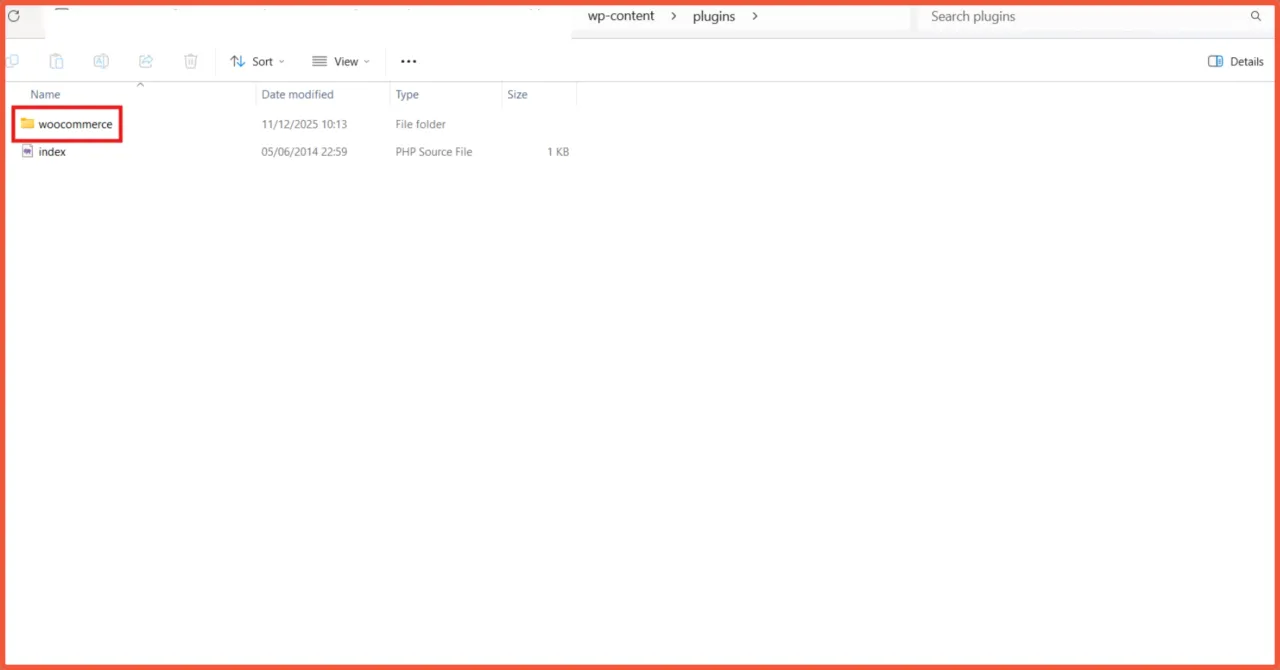
- Navigate to the /wp-content/plugins/woocommerce/ directory.
- Locate the readme.txt file.
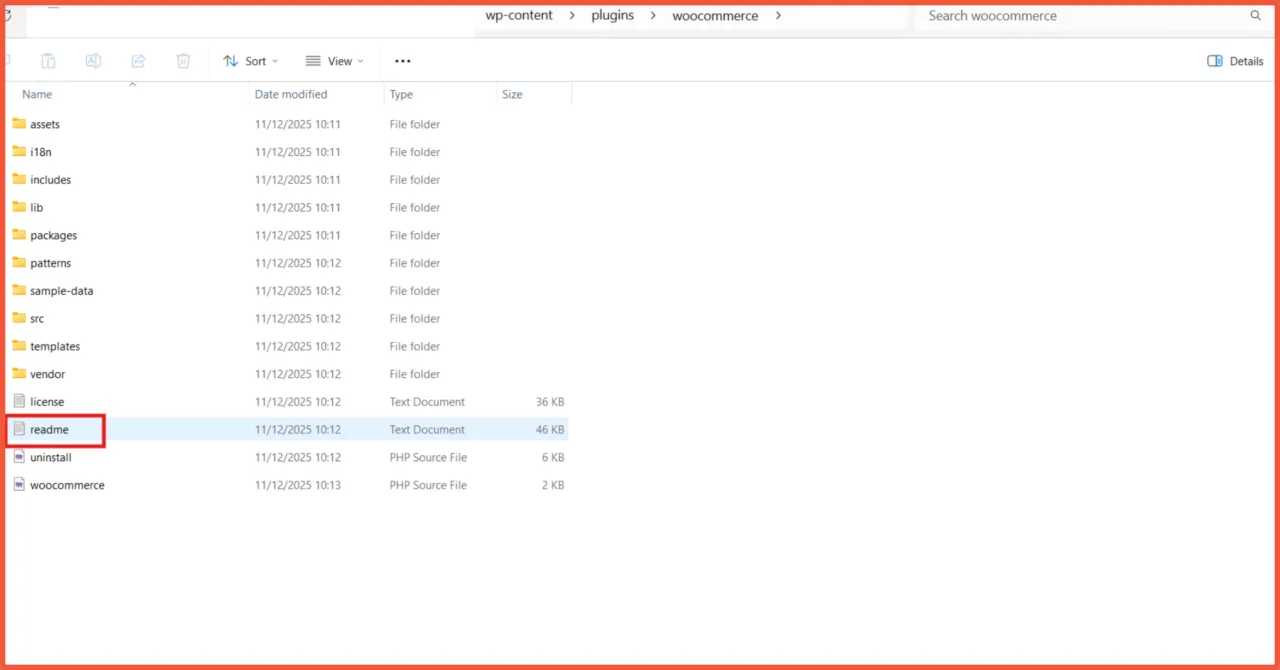
- Open the file and look for the version information.
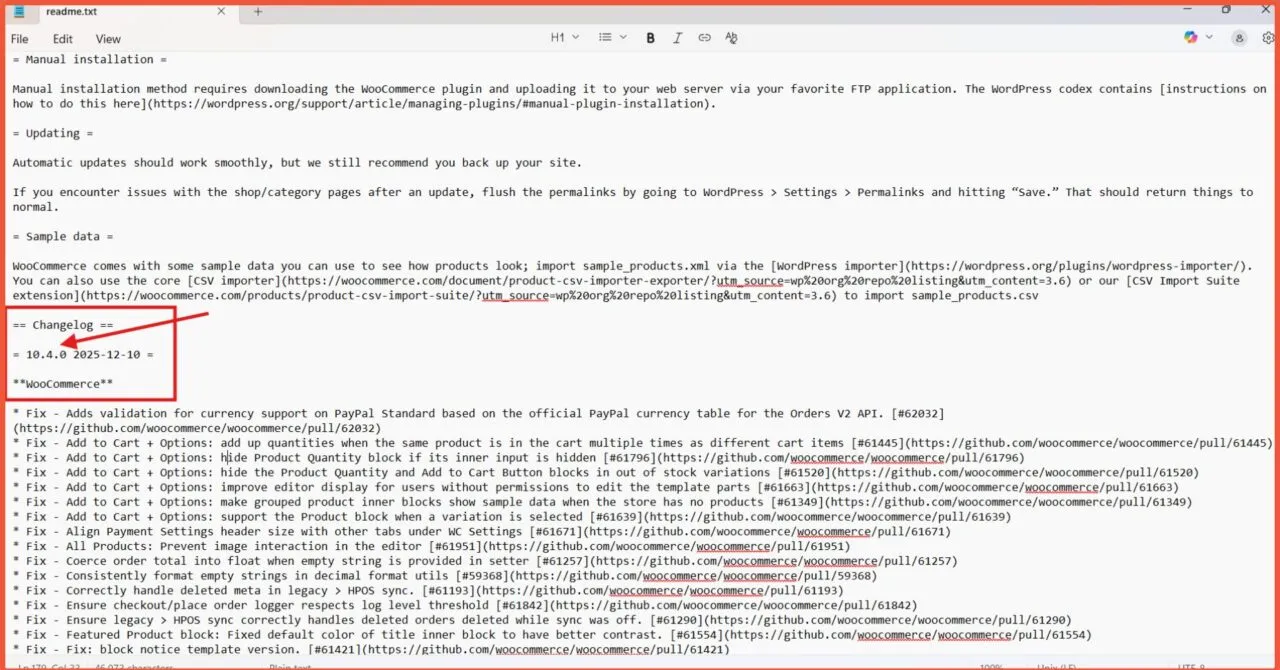
The WooCommerce version in readme.txt is located near the Changelog section.
What Should You Do If Your WooCommerce Version Is Outdated?
By knowing which WooCommerce version you’re using, online store owners can evaluate whether it’s still relevant or significantly outdated. If you find that your WooCommerce version is quite old and hasn’t been updated, there are a few preparatory steps you should take before updating:
- Backup: Before updating WooCommerce, it is highly recommended to perform a full backup that includes all website files and the database. This is a crucial step to anticipate potential errors after the update.
- Check Compatibility: In addition to a full backup, you must also check for compatibility with the theme and plugins installed on your website. This is important to minimize the risk of losing certain functions and disrupting your online store’s operations after the update.
By considering these two aspects, you can perform the WooCommerce update more safely.
Successfully Checked Your Online Store’s WooCommerce Version?
That covers the methods for checking the WooCommerce version on your online store. Knowing and checking your WooCommerce version is an often-overlooked but crucial task, especially for maintaining the security and performance stability of your online store. Understanding these different checking methods can help you reduce the risk of errors on your e-commerce website.
If you need professional help to build and optimize your business website, trust Tonjoo’s e-commerce development services. We have experience developing hundreds of e-commerce websites like Amily Hijab, Erge Store, Polygon Bikes, and many more. Tonjoo is ready to deliver a website that is functional, secure, and tailored to your business needs.

Read similar articles by Moch. Nasikhun Amin on the Tonjoo blog about WordPress, WooCommerce, plugins, and other web development topics.
Updated on February 14, 2026 by Moch. Nasikhun Amin