


Regularly updating WooCommerce is a vital step in maintaining the performance and security of your online store. WooCommerce continuously develops new features and fixes bugs and security vulnerabilities through version updates.
Therefore, website owners need to understand how to update WooCommerce correctly to avoid causing errors on the site.
In this guide, we will discuss how to update WooCommerce to the latest version using several methods that can be tailored to your store’s needs. Follow this tutorial until the end to ensure a smooth process.
Table of Contents
Why is Updating WooCommerce Important?
Updating WooCommerce isn’t just about getting the latest features; it is directly related to the security and compatibility of your website. Each new version typically brings bug fixes, performance enhancements, and security patches to protect your online store from cyberattacks.
Furthermore, updating the WooCommerce plugin ensures it remains compatible with your WordPress version, your theme, and other plugins. If WooCommerce is not updated, the risk of plugin conflicts, checkout errors, and transaction failures increases.
Preparation Before Updating WooCommerce
Before proceeding with the update, there are several essential steps to ensure the process goes safely:
- Full Backup: Back up your entire website, including files and the database. This serves as a safety net if an error occurs after the update.
- Check Compatibility: Verify that your theme and other supporting plugins are compatible with the latest WooCommerce version.
- Use a Staging Site: If possible, perform the update on a staging site first. This allows you to test for issues before applying changes to the live website.
How to Update WooCommerce to the Latest Version
Once preparation is complete, you can proceed with the update. There are several methods available depending on your website’s conditions.
Method 1: Automatic Update via the Plugins Menu
This is the easiest method and is recommended for beginners.
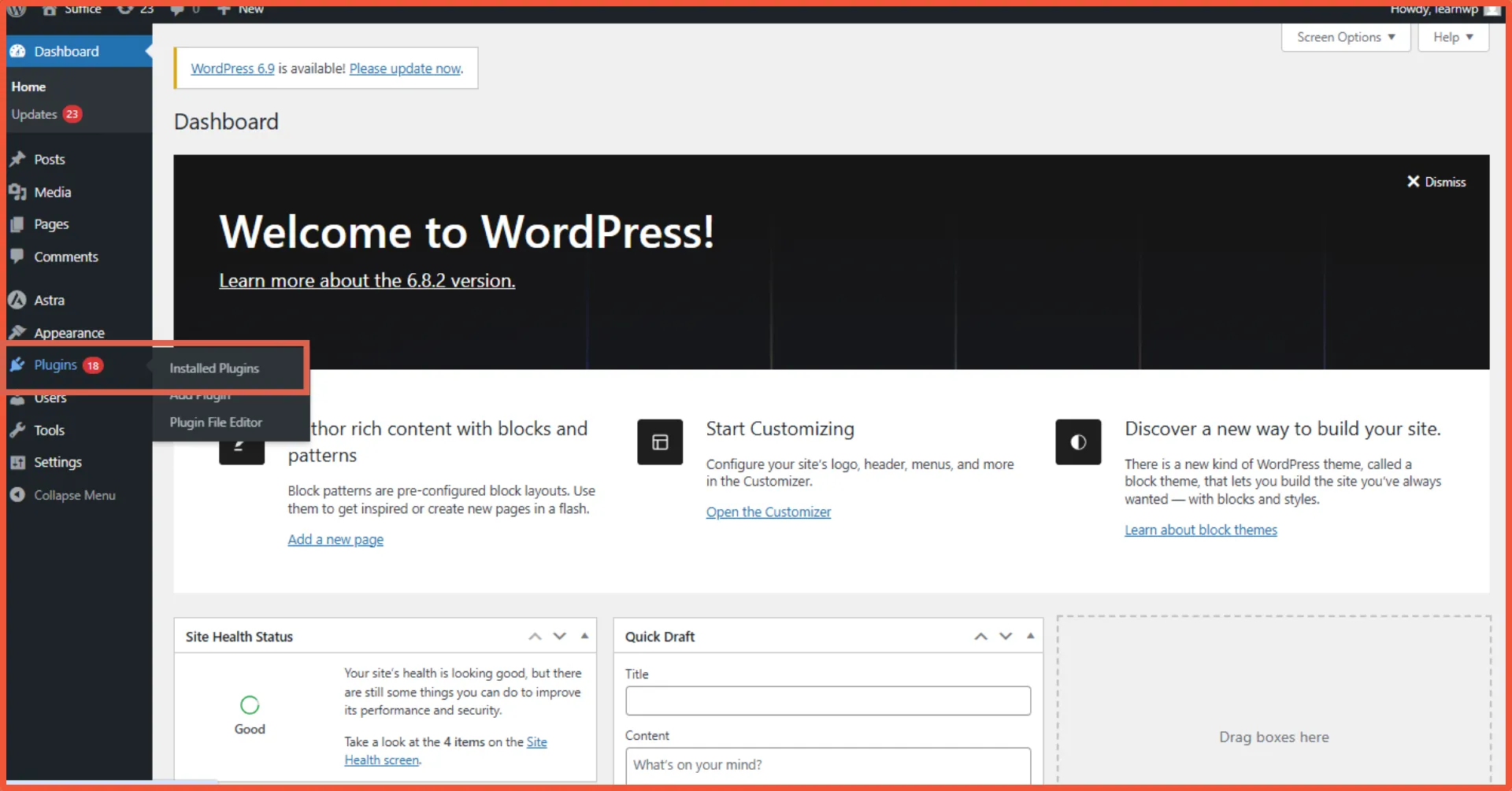
- From the WordPress dashboard, go to Plugins > Installed Plugins.
- Locate WooCommerce and click Update Now.
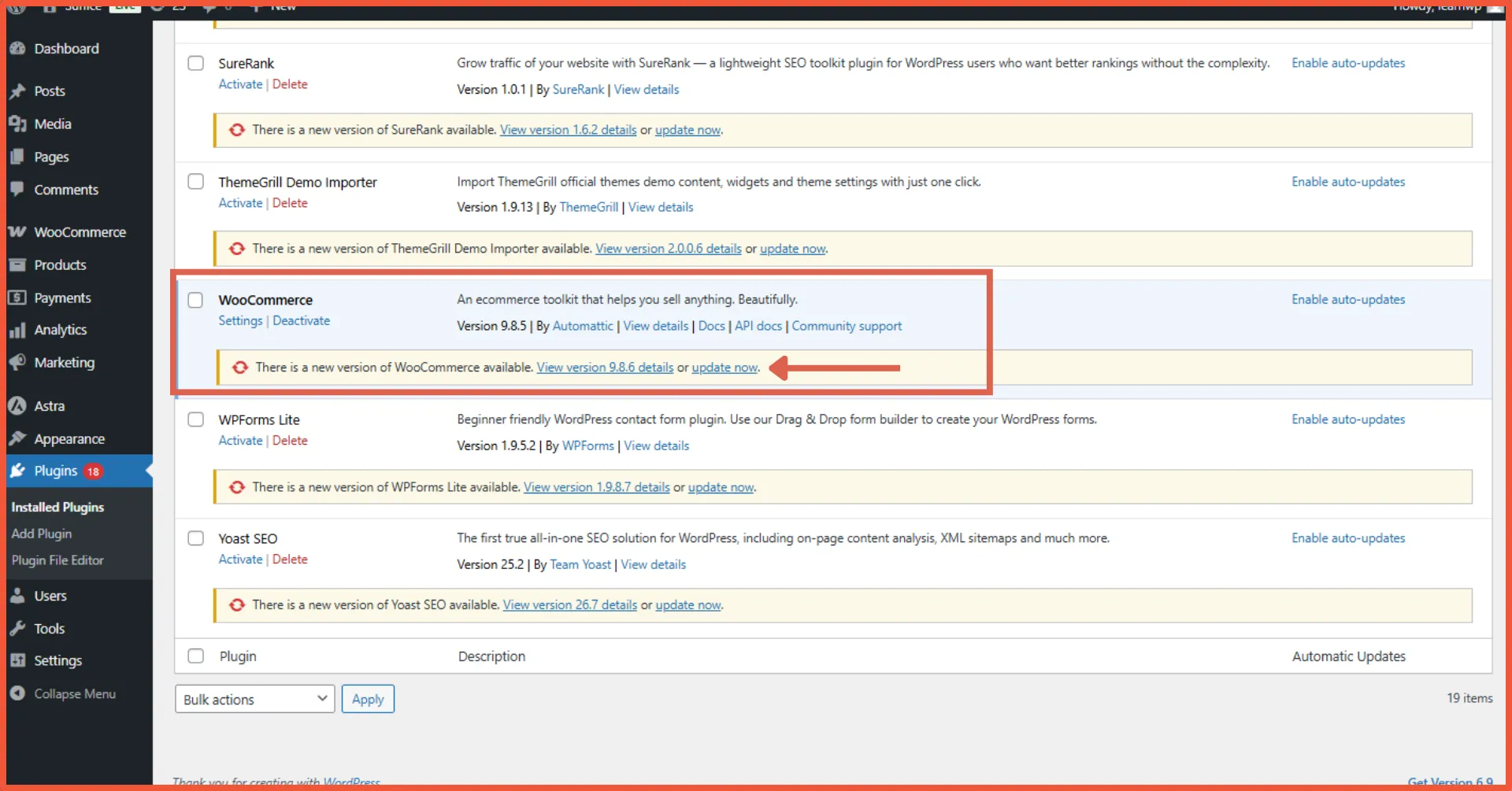
- Wait until the update process is complete.
Method 2: Update via the Updates Menu
Another automatic alternative is using the centralized Updates dashboard:
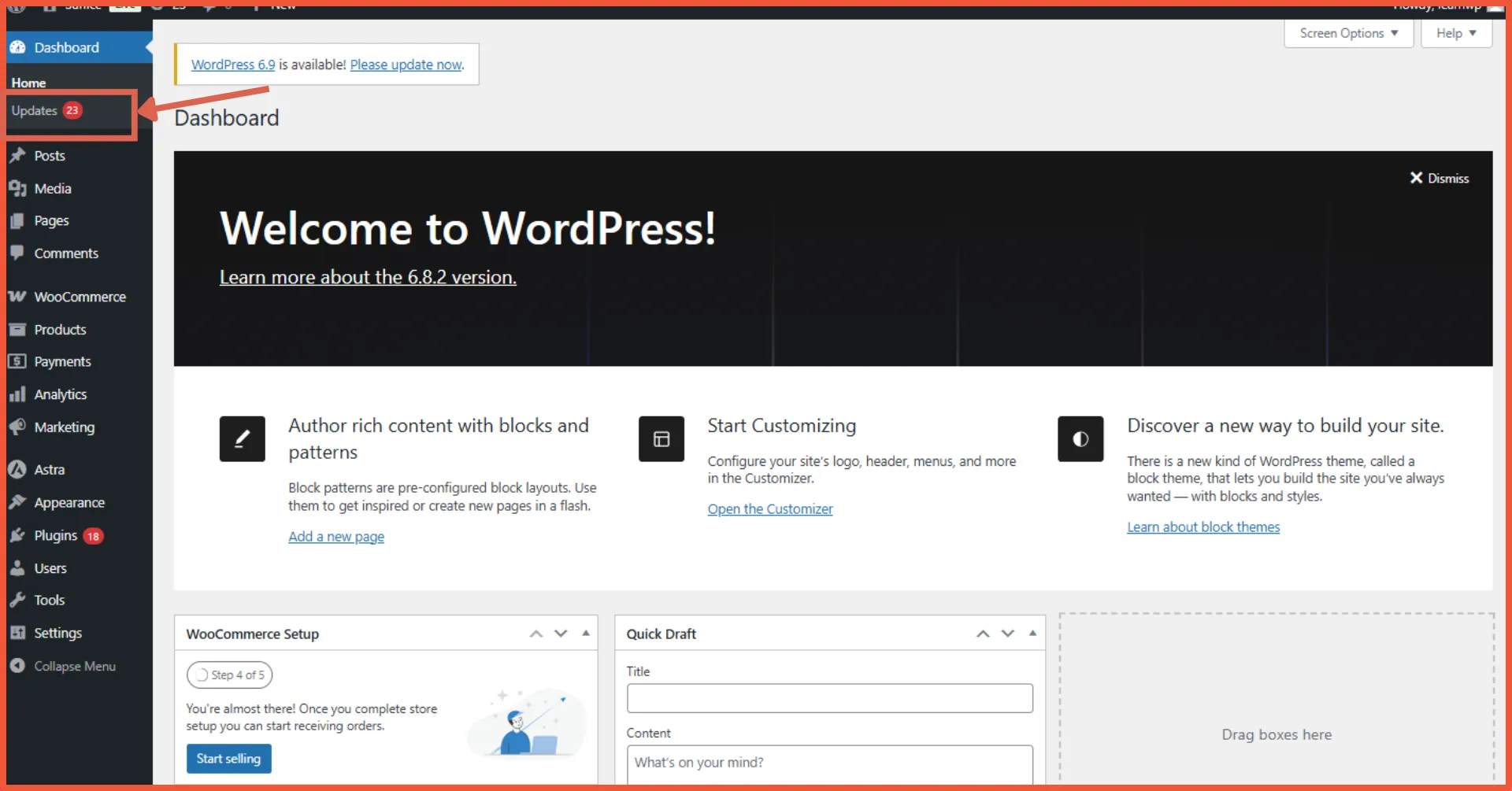
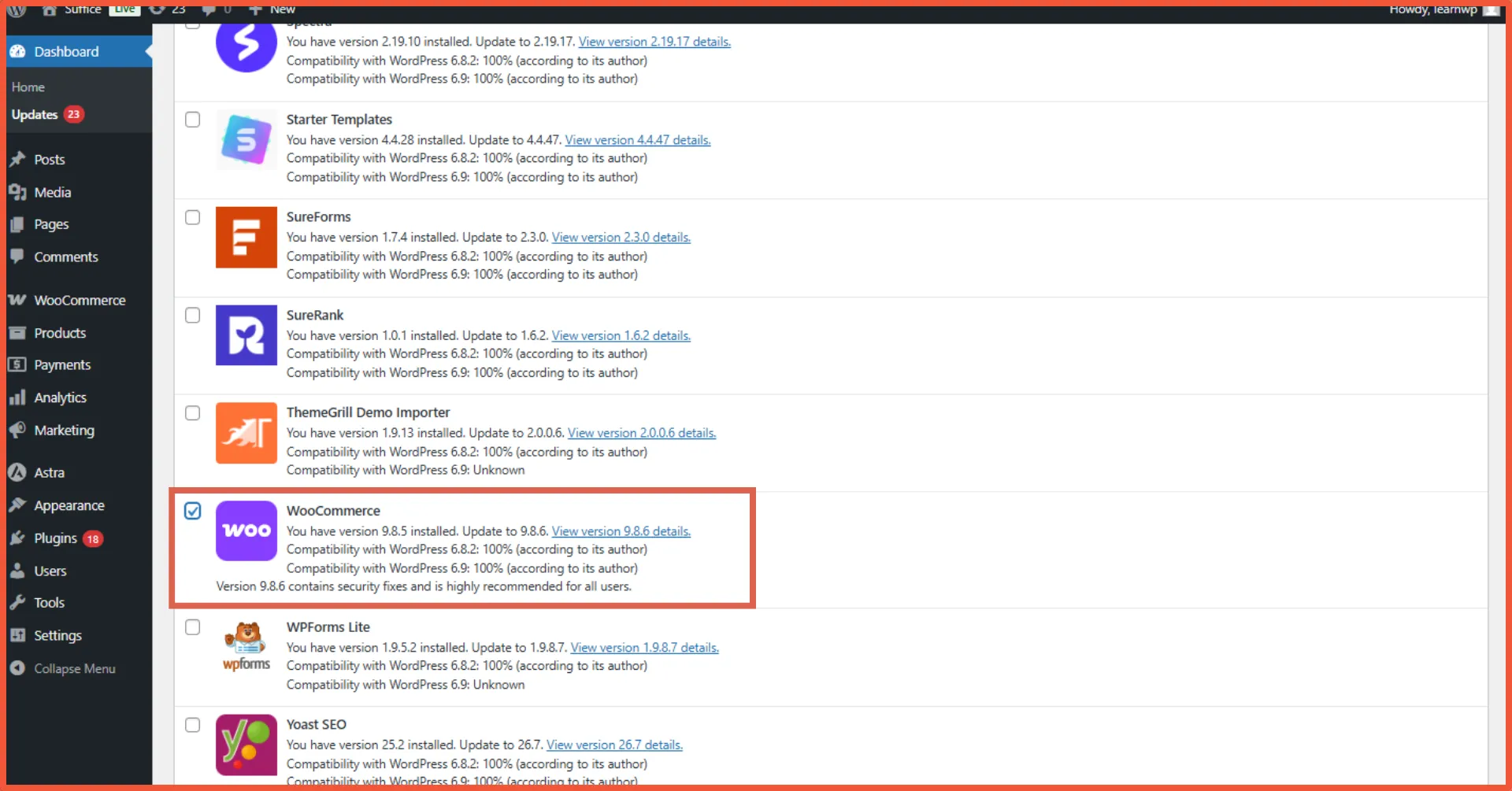
- From the WordPress dashboard, go to the Dashboard > Updates menu.
- Check the box next to the WooCommerce plugin.
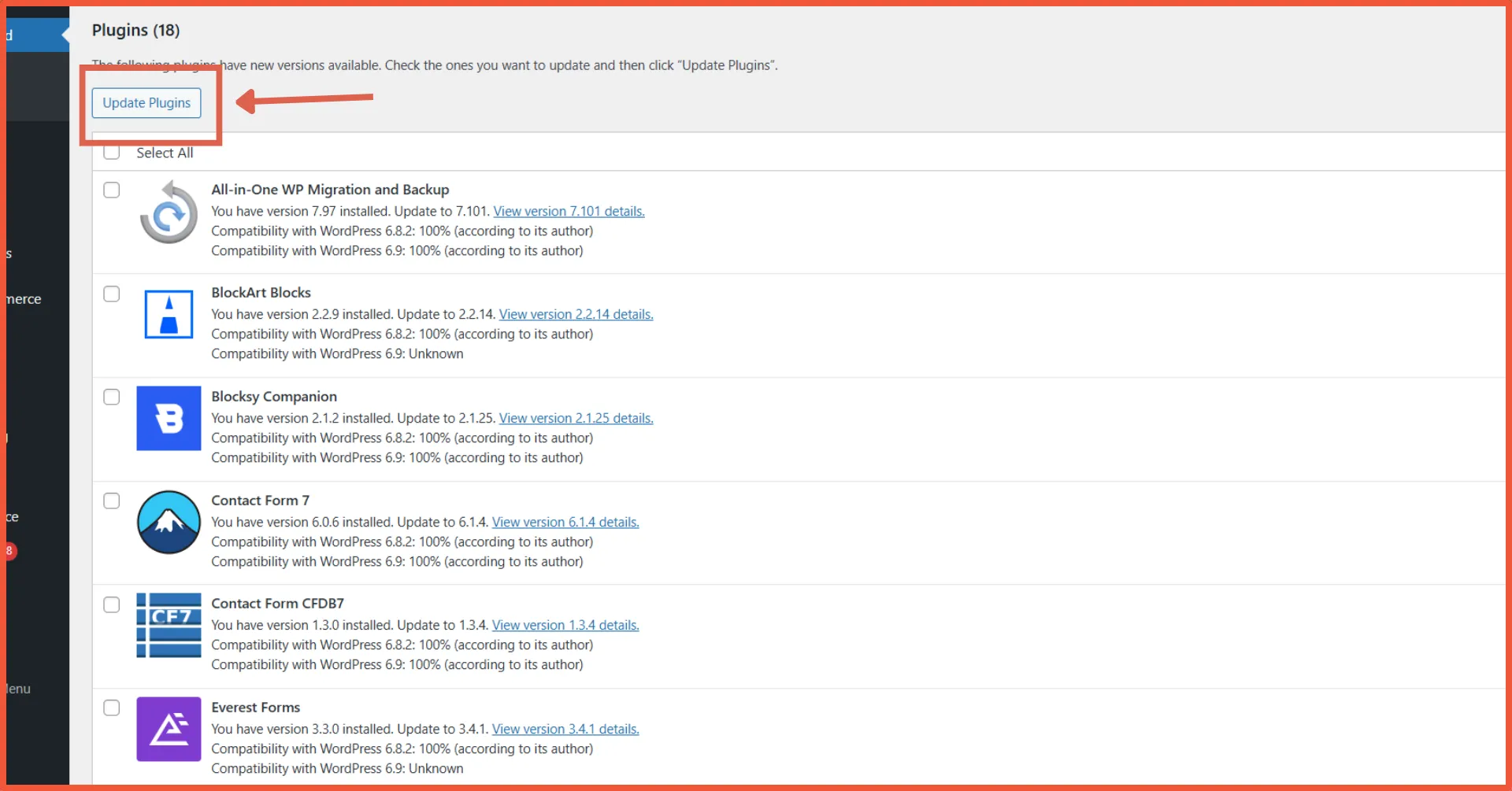
- Click the Update Plugins button.
Method 3: Manual Update (Plugin Upload)
If the automatic update fails due to an error, you can perform a manual update:
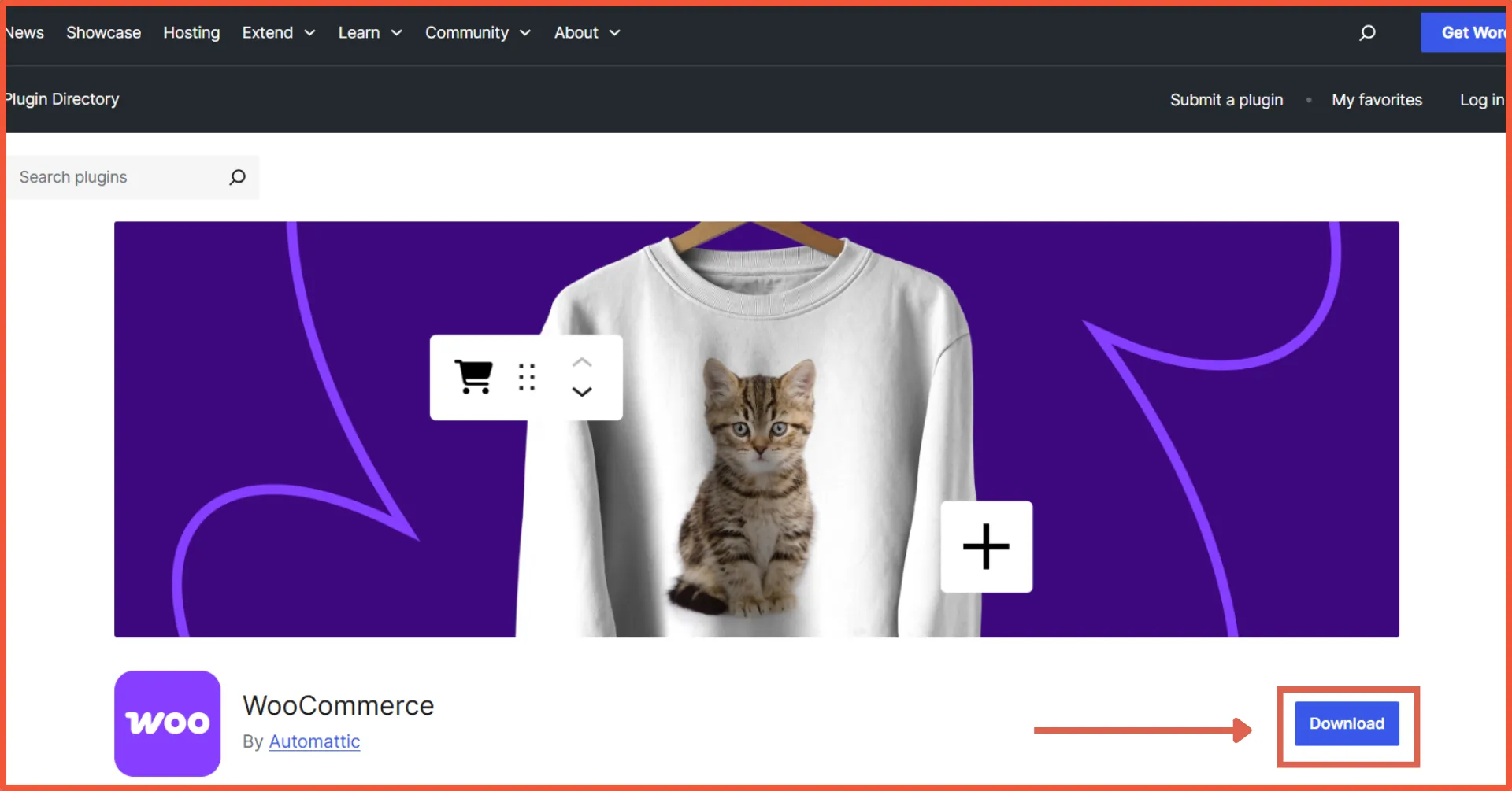
- Download the latest WooCommerce plugin (ZIP file) from the official WordPress.org website.
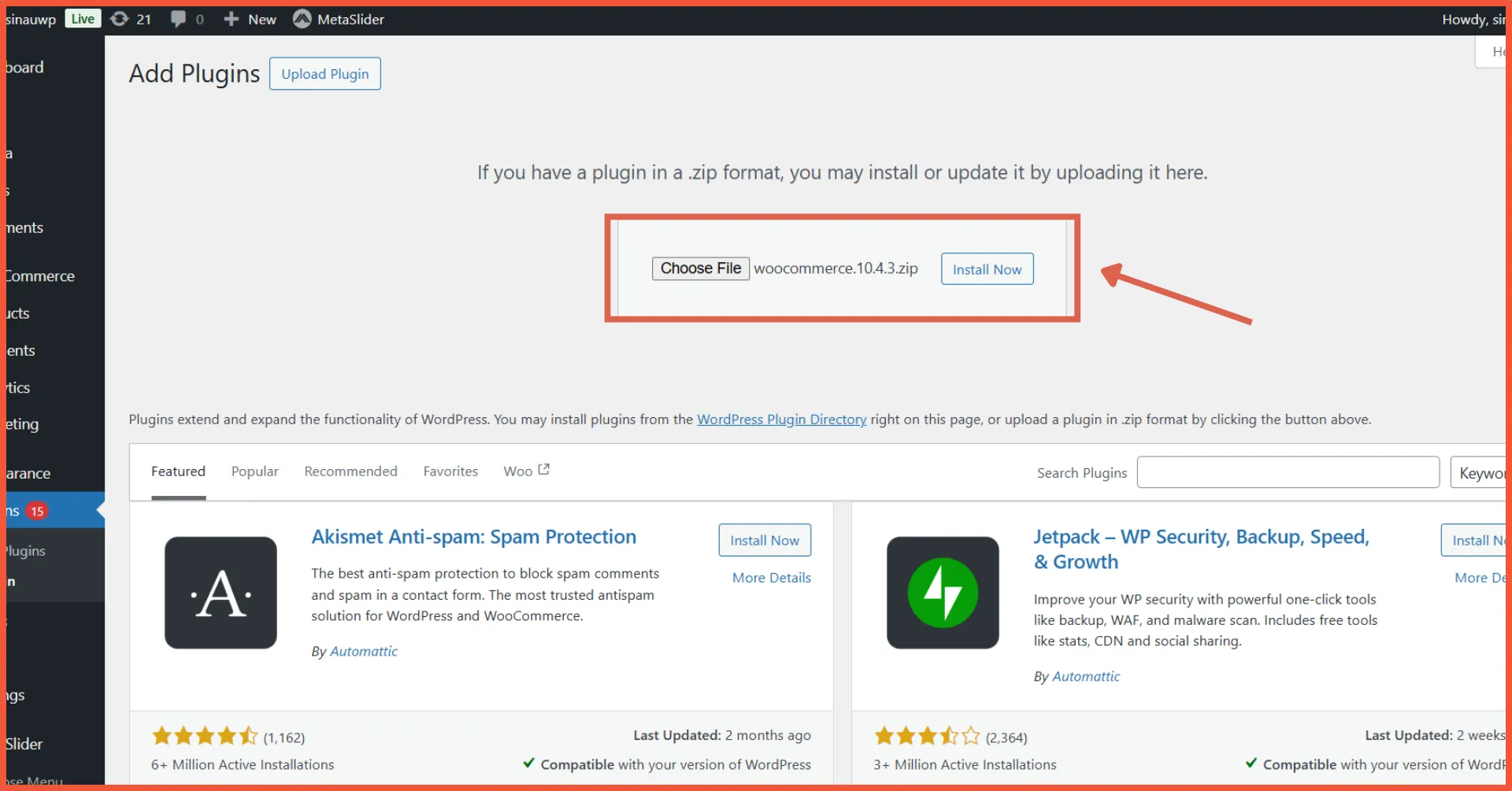
- Go to Plugins > Add New > Upload Plugin.
- Upload the WooCommerce ZIP file and click Install Now.
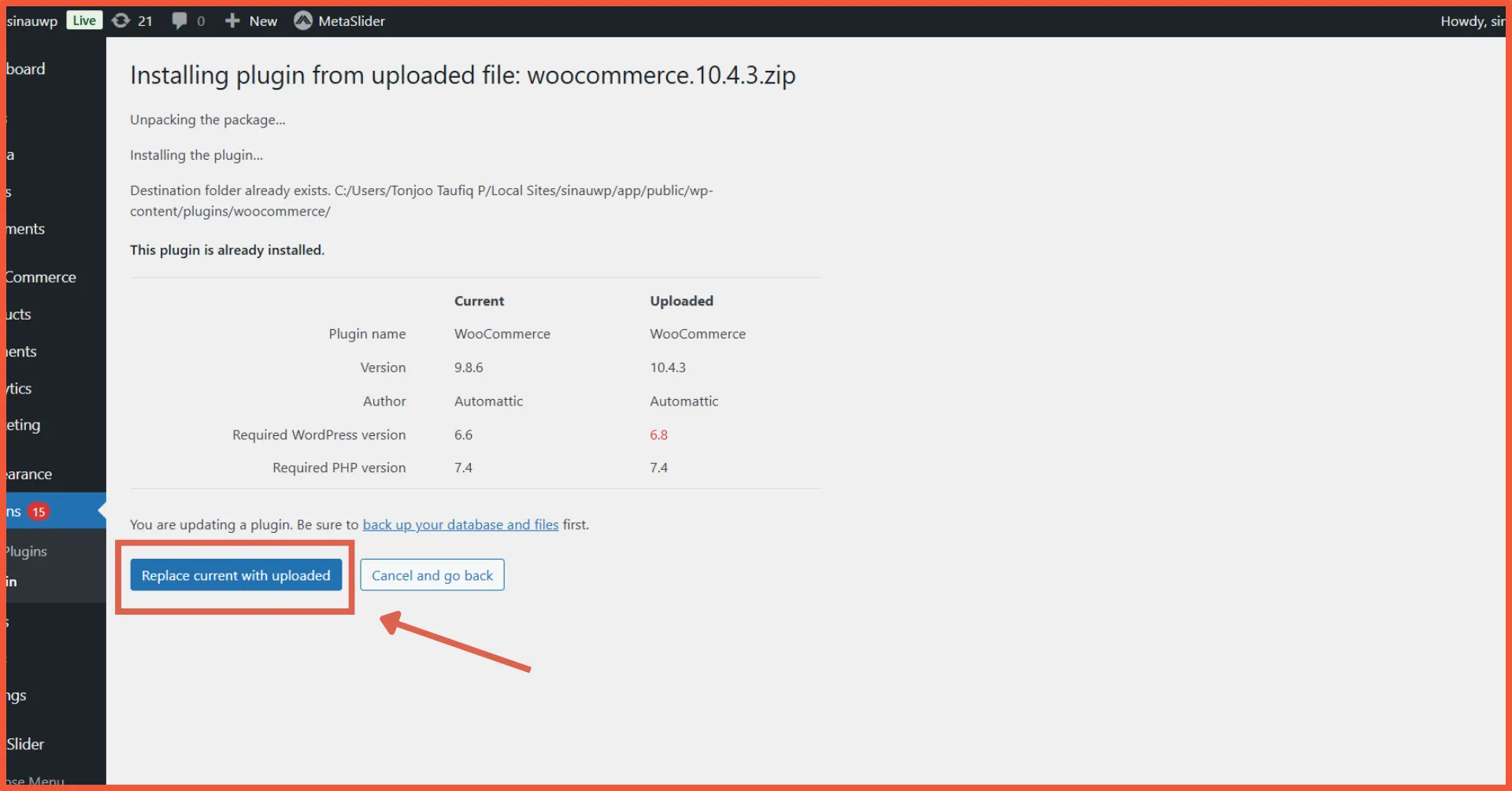
- Click Replace current with uploaded to install the newer version over the old one.
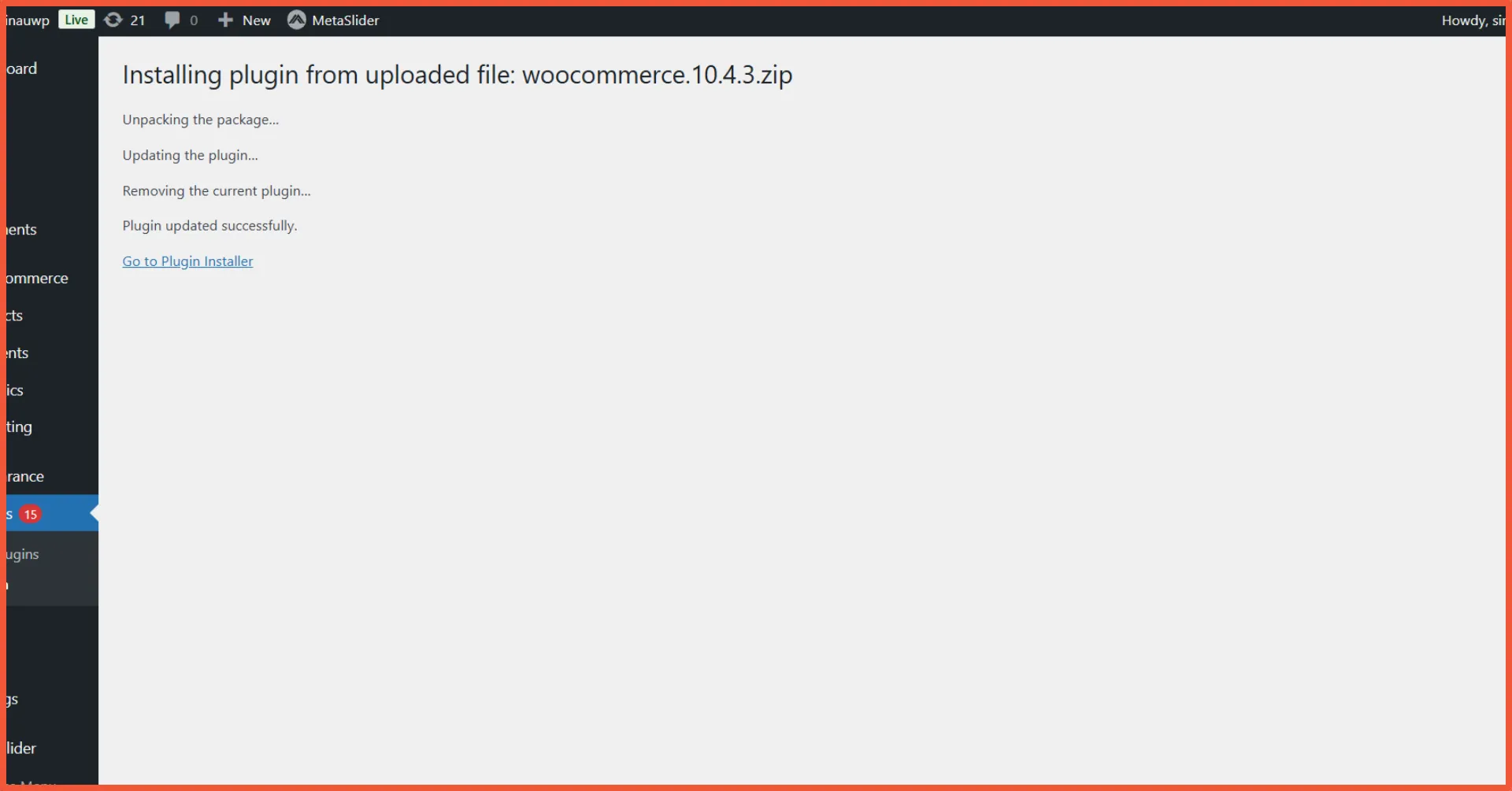
- The plugin update is now successful.
What to Do After the Update?
After the update is finished, perform these steps to ensure your store is running normally:
1. Check the WooCommerce Database
Check if the database needs an update by going to WooCommerce > Status > Tools. If you see a notification to update the database, run it immediately.
2. Clear Cache
If you use a caching system (like LiteSpeed Cache, WP Rocket, or W3 Total Cache), clear your cache so the new version’s changes reflect correctly.
3. Test Your Store
Conduct a thorough check of your e-commerce site, including product pages, the shopping cart, the checkout process, and the payment gateway.
Successfully Updated WooCommerce?
That is how you update WooCommerce to the latest version. Keeping your software current is key to maintaining security, performance, and stability. By following the correct steps, you minimize the risk of errors and ensure your business operations remain smooth.
If you want to focus on growing your business without the hassle of technical maintenance, don’t hesitate to use Tonjoo’s e-commerce website development services.
With over 10 years of experience, brands like Erge Store, Amily Hijab, and Polygon Bikes have trusted Tonjoo with their online presence.
Contact Tonjoo now and bring your dream e-commerce website to life!

Read similar articles by Moch. Nasikhun Amin on the Tonjoo blog about WordPress, WooCommerce, plugins, and other web development topics.
Updated on May 18, 2026 by Moch. Nasikhun Amin
