



Managing product stock in WooCommerce is the process of controlling your product inventory levels so that stock is automatically deducted upon purchase, keeping your product status completely accurate.
With proper configuration, you can avoid running out of stock and prevent selling items that are already sold out, thereby maintaining customer trust.
In this tutorial, you will learn how to manage product stock in WooCommerce, from understanding how the inventory system works and configuring global settings to managing stock for both simple and variable products. Follow each step of this guide to the end.
Table of Contents
How WooCommerce Product Stock Works
The WooCommerce inventory system is automated and fully integrated with your order management. Once the stock management feature is enabled, store administrators can set stock quantities for each product or variation via the WooCommerce dashboard.
When a customer places an order, WooCommerce automatically reduces the stock level based on the purchased items. This process ensures your inventory data stays updated without requiring manual adjustments.
Additionally, WooCommerce displays product availability statuses based on remaining quantities:
- In Stock: Displayed as long as inventory is available.
- Out of Stock: Automatically triggered when inventory hits zero or a minimum threshold, preventing customers from placing further orders.
WooCommerce allows store managers to:
- Display stock status on the storefront.
- Set up low-stock notifications.
- Define minimum stock thresholds.
- Manage stock individually per product variation.
To make use of these features, you must first enable the stock settings globally.
Preparation: Enabling Product Stock in WooCommerce (Global Settings)
Before managing individual product levels, ensure that the WooCommerce stock management system is turned on.
Steps to Configure Global Settings:
- From your WordPress dashboard, navigate to WooCommerce > Settings.
- Select the Products tab and click on Inventory.
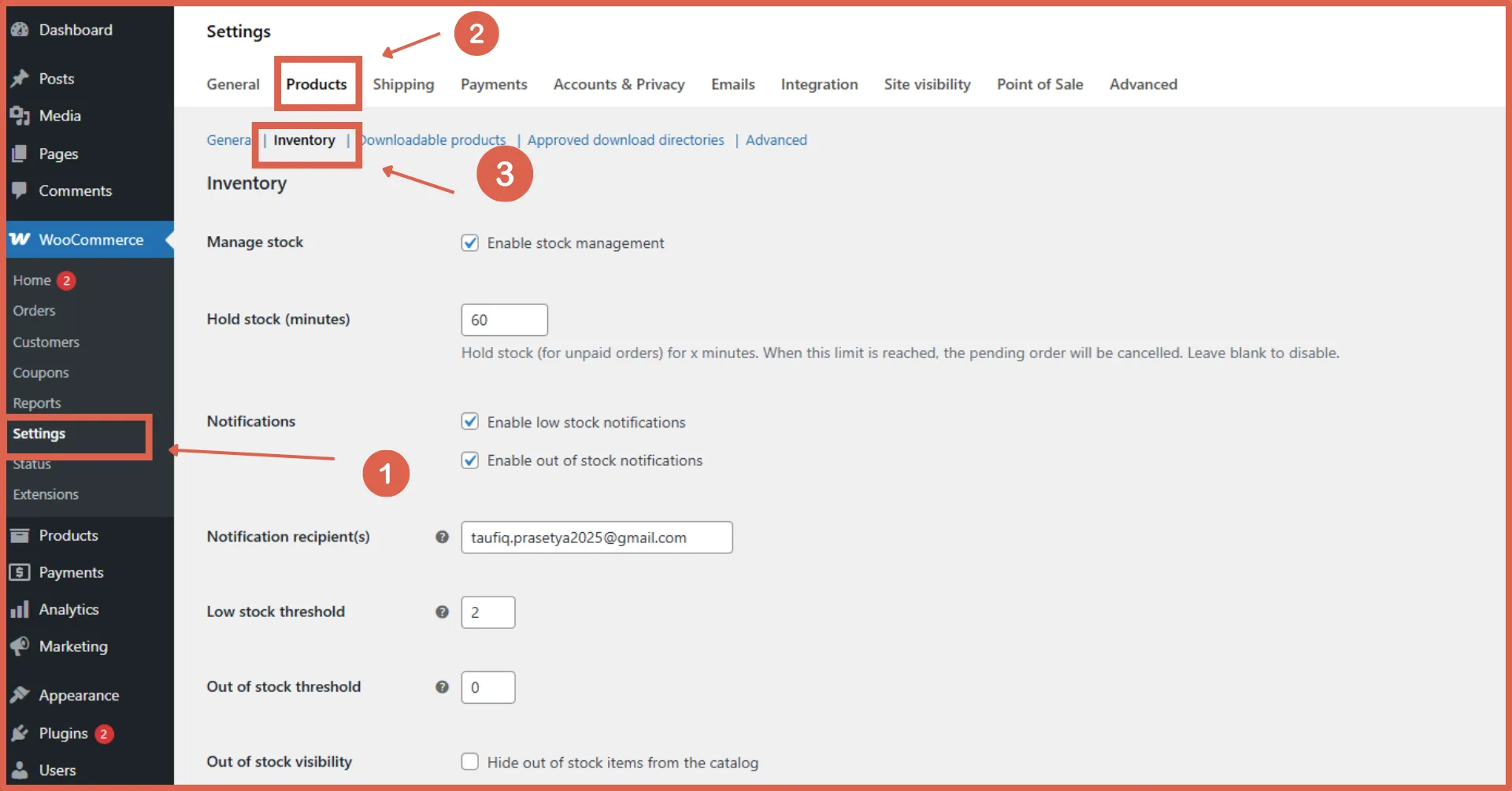
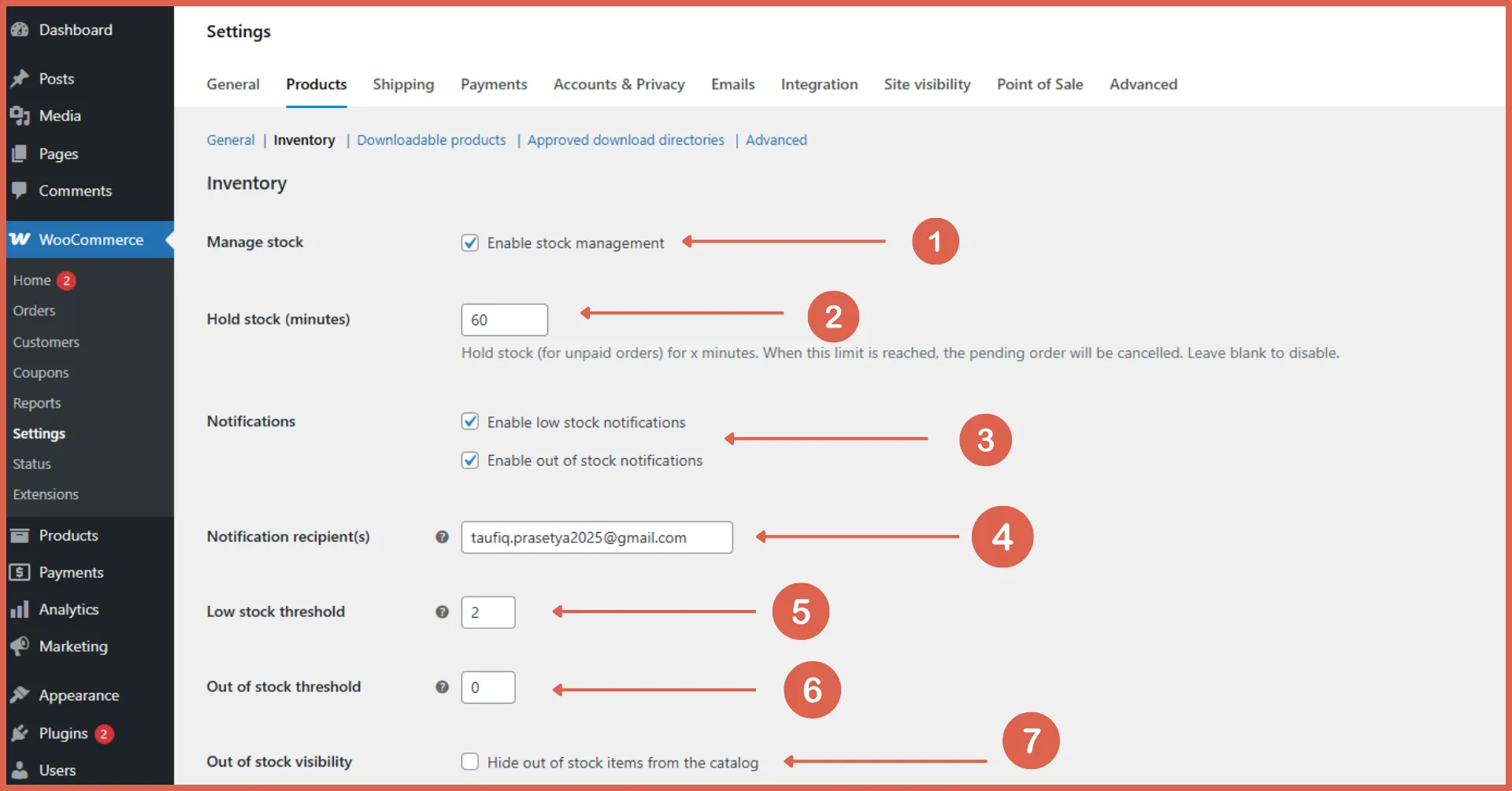
- Check the Enable stock management option and configure the following parameters:
– Hold stock (minutes): The time limit for pending payments before an unpaid order is cancelled and stock is returned to inventory.
– Notifications: Toggle email notifications for low stock and out-of-stock items.
– Notification recipients: Enter the email address that should receive these updates.
– Low stock threshold: The default minimum quantity that triggers a low-stock notice.
– Out of stock threshold: The quantity level where the status automatically flips to Out of Stock.
– Out of stock visibility: Choose whether to hide or show out-of-stock products on your catalog.
- Click Save Changes.
How to Configure Product Stock in WooCommerce
With the global configurations active, you can now set stock levels. WooCommerce accommodates two main product types that support inventory tracking: Simple Products and Variable Products.
a. Managing Stock for Simple Products
A simple product is the most basic item type in WooCommerce, containing no additional variations like size or color.
- Go to Products > All Products.
- Select the product you want to edit or click Add New for a fresh product entry.
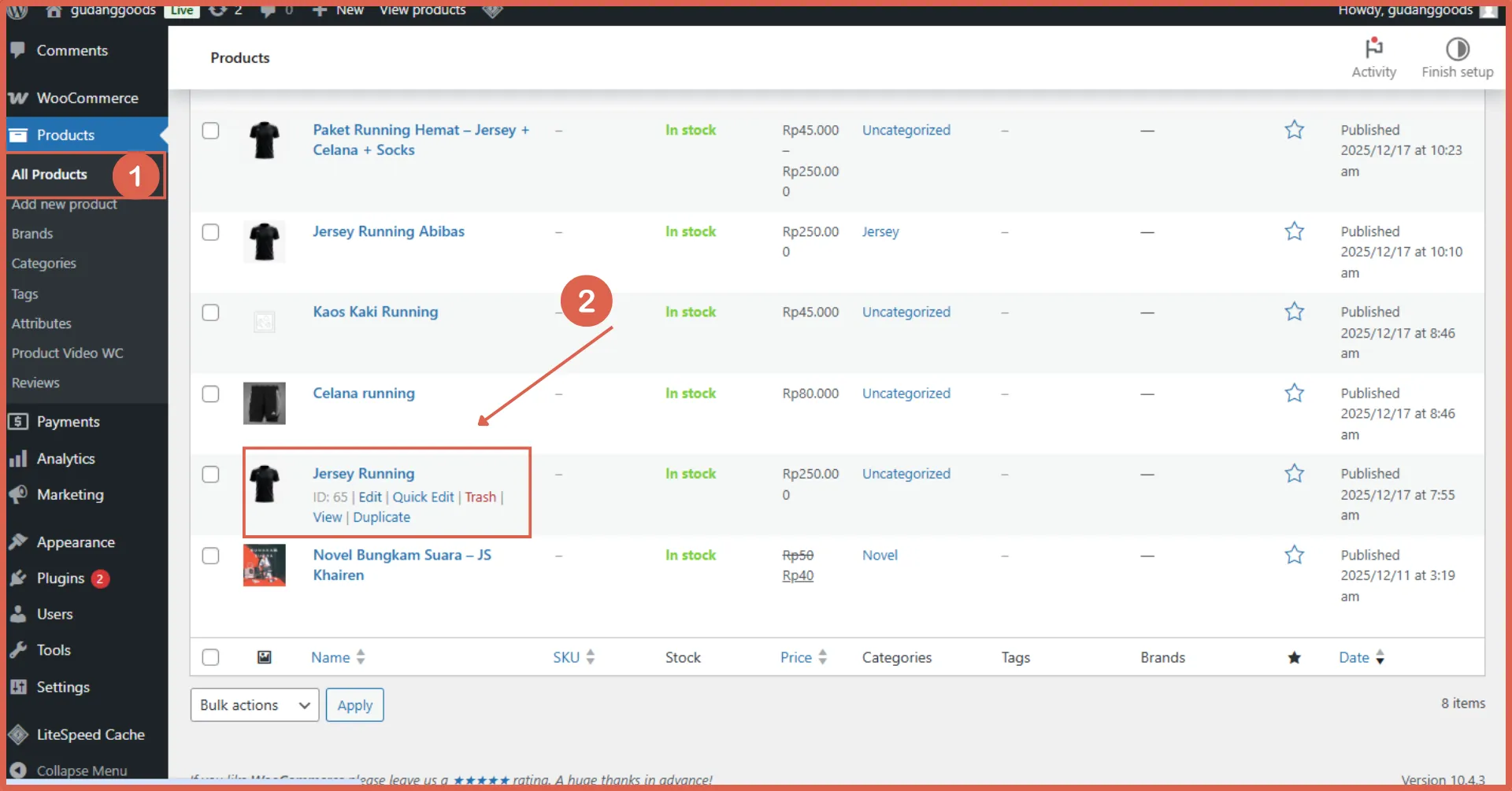
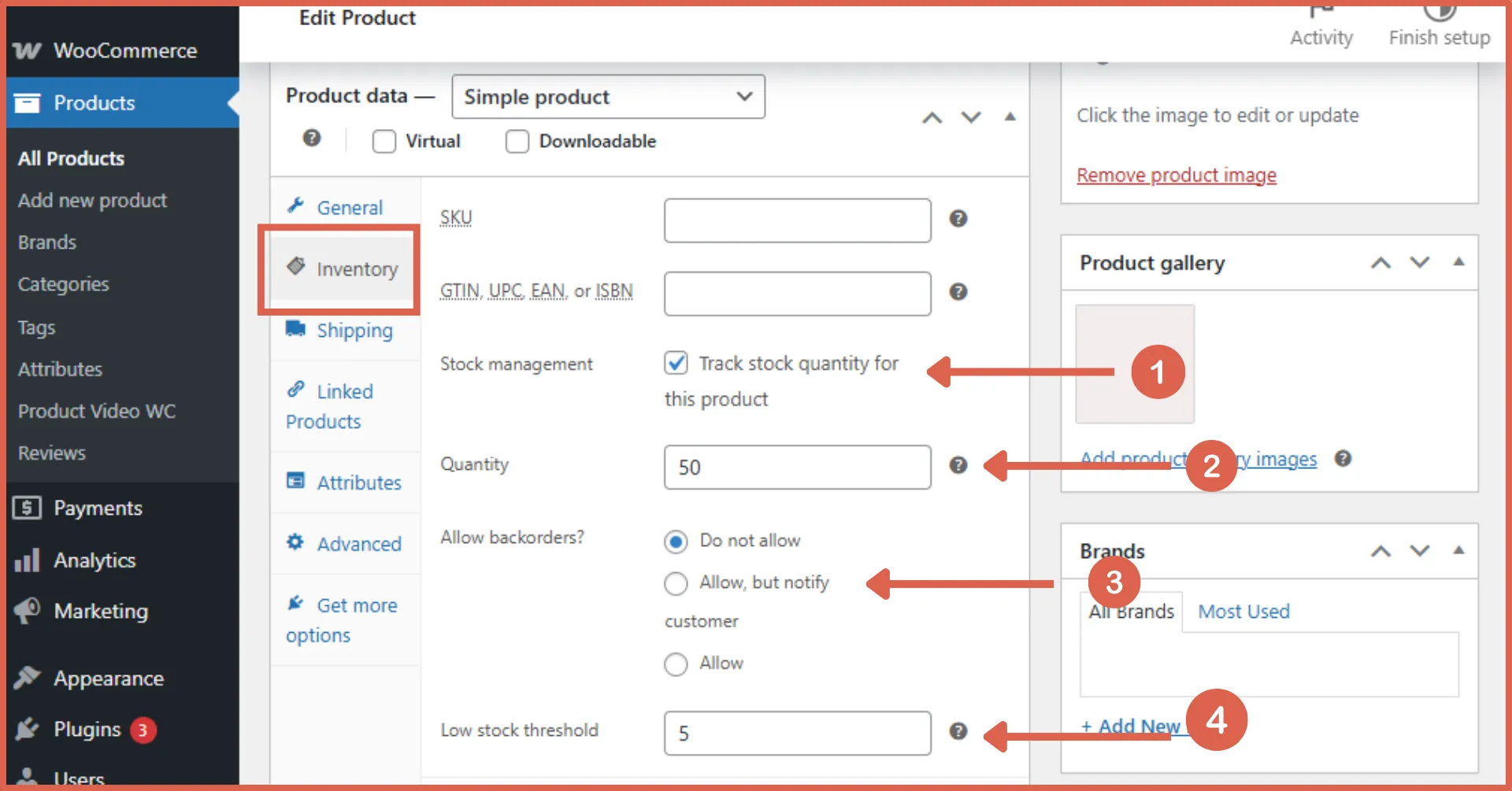
- Scroll down to the Product Data box, select the Inventory tab, and configure these fields:
– Stock management: Check this box to enable inventory tracking for this specific item.
– Quantity: Enter the current stock amount.
– Allow backorders: Choose whether customers can still purchase the item when it is out of stock.
– Low stock threshold: Set a custom limit to receive an alert when inventory runs low for this specific product.
- Click Update or Publish.
b. Managing Stock for Variable Products
Variable products are used when an item features multiple options, such as colors, sizes, or models. For variable items, stock is not managed at the main product level, but rather individually within each variation.
- Go to Products > All Products.
- Choose a product configured as a Variable product.
- Click on the Variations tab.
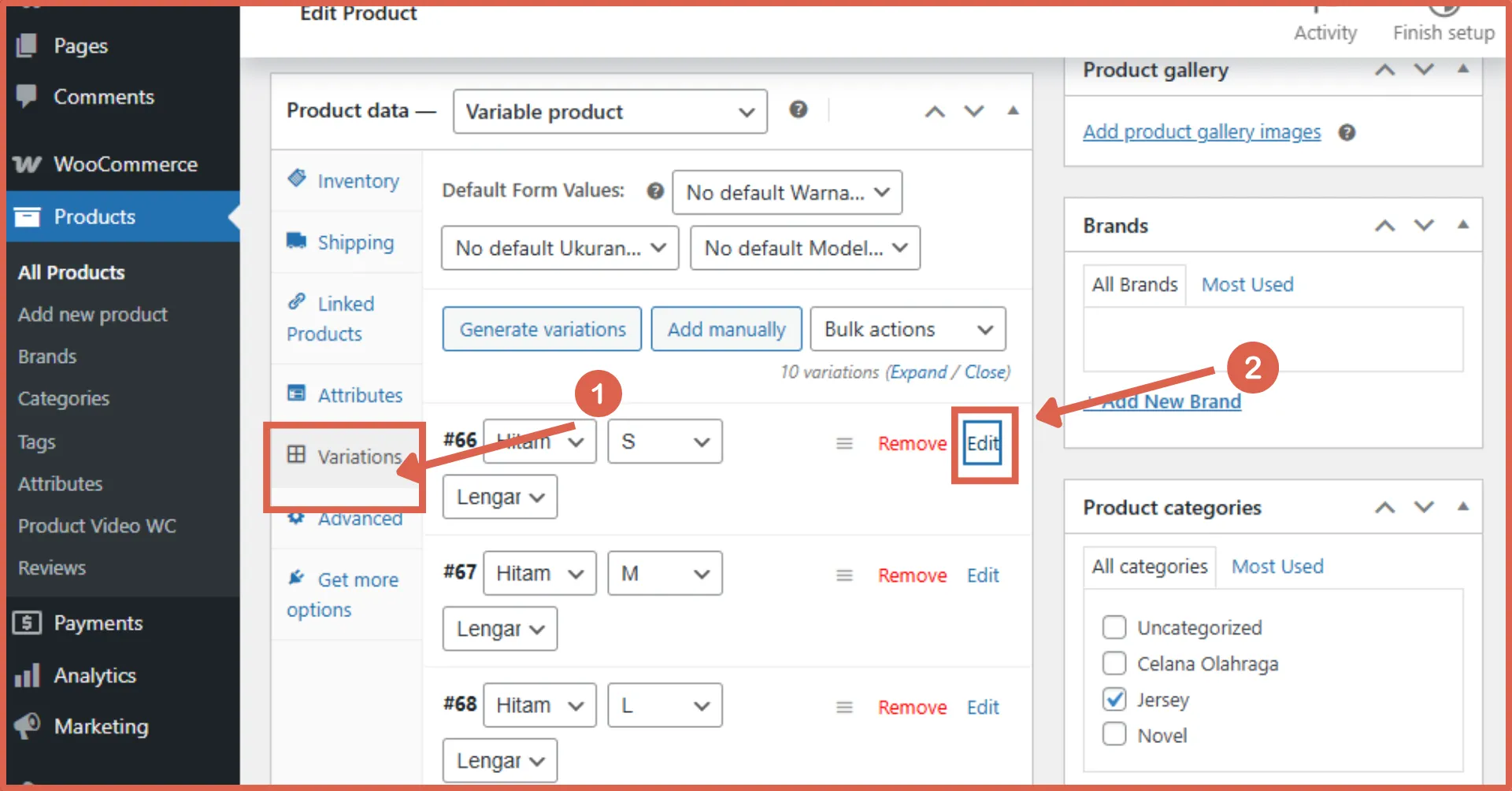
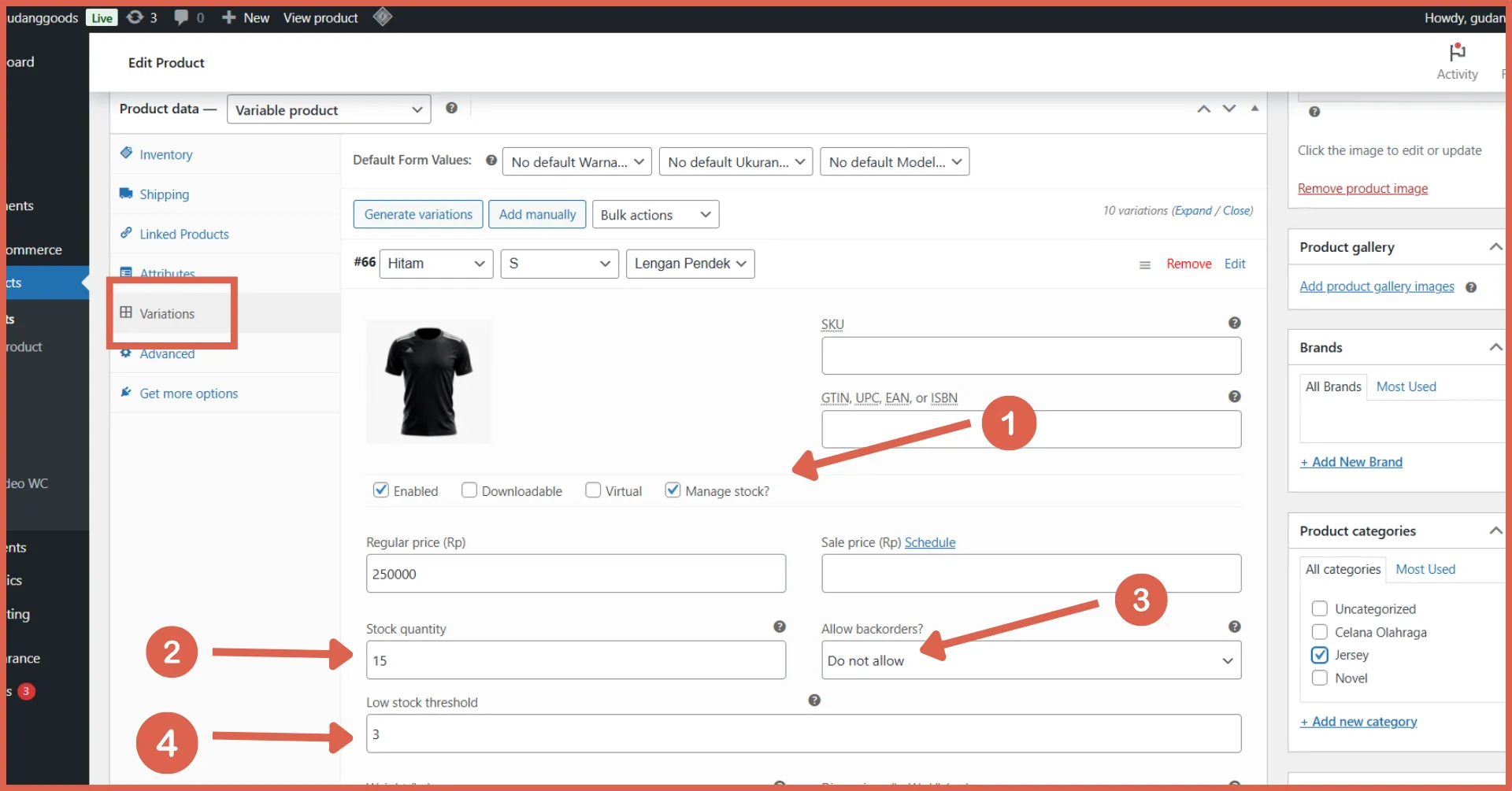
- Click Edit (or expand the row) on a specific variation and fill out the settings:
– Manage stock: Check this box to track inventory for this variation.
– Stock quantity: Enter the current stock level for this option.
– Allow backorders: Determine backorder preferences for this option.
– Low stock threshold: Set a specific alert threshold for this variation.
- Repeat step 4 for all remaining variations.
- Click Save Changes in the variations panel, then click Update on the main product post.
Successfully Managed Your Product Stock?
That concludes our guide on configuring product stock in WooCommerce. Maintaining an organized inventory system is key to ensuring your online storefront displays accurate data. Proper inventory control protects you from over-selling issues, giving your customers a seamless and reliable shopping experience.
If you are looking to deploy an e-commerce platform backed by a robust and reliable inventory system, consider using professional web development solutions. Tonjoo offers dedicated WooCommerce web creation services backed by over a decade of experience. We have successfully developed hundreds of digital storefronts for prominent brands like YUM Organic Farm, Amily Hijab, and Polygon Bikes.
Contact Tonjoo today to build an e-commerce website optimized to scale your business!

Read similar articles by Moch. Nasikhun Amin on the Tonjoo blog about WordPress, WooCommerce, plugins, and other web development topics.
Updated on June 1, 2026 by Moch. Nasikhun Amin
